
Approve what your agents ask to do
Approve or deny what an agent asked to do before acting, from triggers set to Propose only, approval mode and platform tools, before the request expires.
On this page
Some things an agent does wait for you first. A trigger set to Propose only writes down what it would do, an agent in approval mode stops before anything that changes state, and the platform tools that can do lasting damage always ask. All of those land in one place, the Approvals page, where you approve or deny them. A request nobody decides expires after 24 hours, so it pays to know where to look.
Where requests come from#
| Label on the request | What asked |
|---|---|
| Trigger: name | A webhook trigger set to Propose only, or any trigger on an agent in approval mode. The label names the trigger. |
| Chat | An agent in approval mode, answering a message, proposed a command or an outbound action instead of running it. Its follow ups after your decision carry the same label as the turn that started them. |
| Platform tool | An agent called a Qoren tool tagged Asks for approval, such as resizing an environment or removing an agent. See agent permissions. |
| Self-repair | An agent in approval mode, fixing a recent error on its own, proposed a change. |
Turn approval mode on or off#
Approval mode is set per agent. While it is on, the agent can still read, search and think on its own, but before it runs a command with side effects, sends an email, posts a message or calls an outside service, it stops and proposes the action here instead.
- In the sidebar, click Agents and open the agent.
- Click the Settings tab, then Permissions.
- Flip the Approval mode switch on. Flip it off the same way.
It takes effect from the agent's next turn; nothing restarts. It covers the turns Qoren starts: messages from the console, the CLI or the SDK, triggers, and self-repair. Messages that reach the agent through a chat app, and its scheduled tasks, run without asking. While it is on, the agent's Chat tab says so under the message box. The switch and the rest of that page are covered in agent permissions.
Approval mode is available on Hermes agents. For an agent on another runtime, the row says it is not available yet.
From the terminal, qoren agent approval-mode <id> on turns it on, off turns it off, and leaving the state out shows where it stands. See the CLI reference.
See what is waiting#
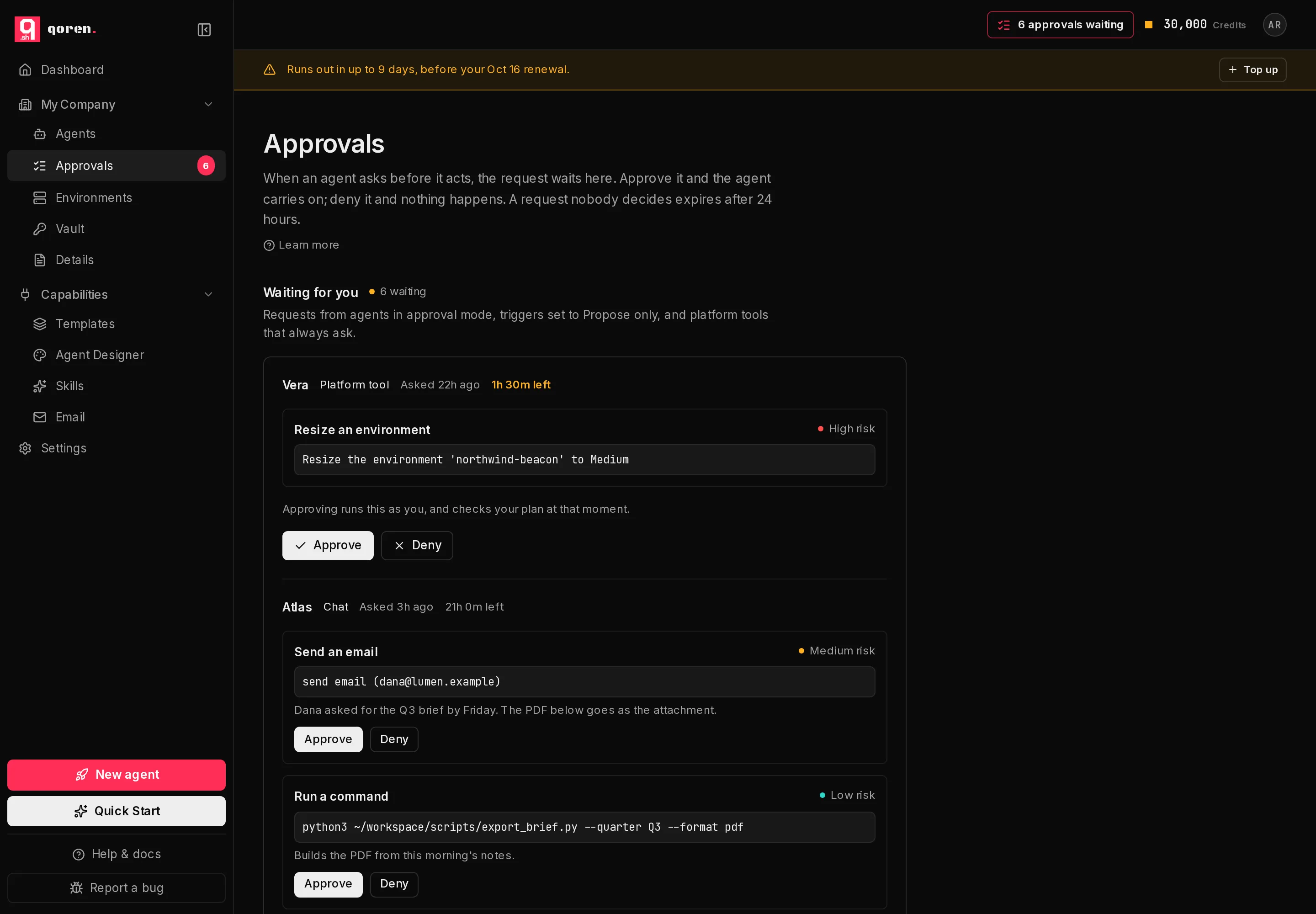
In the sidebar, under My Company, click Approvals (1). The number beside it is how many actions are waiting across all your agents. While anything is waiting, the top bar on every page also shows how many (2); click it to open the same page.
 12
12Waiting for you lists every request, the one closest to expiring first. Each one shows:
- The agent that asked, which opens that agent when you click it.
- Where it came from (1).
- When it was asked, and the time left before it expires (2). The time turns amber in the last two hours.
- What it wants to do: a short title such as Send an email or Run a command, the exact detail underneath, the agent's reason when it gave one, and its own estimate of the risk. Platform tools are always High risk.
 12345
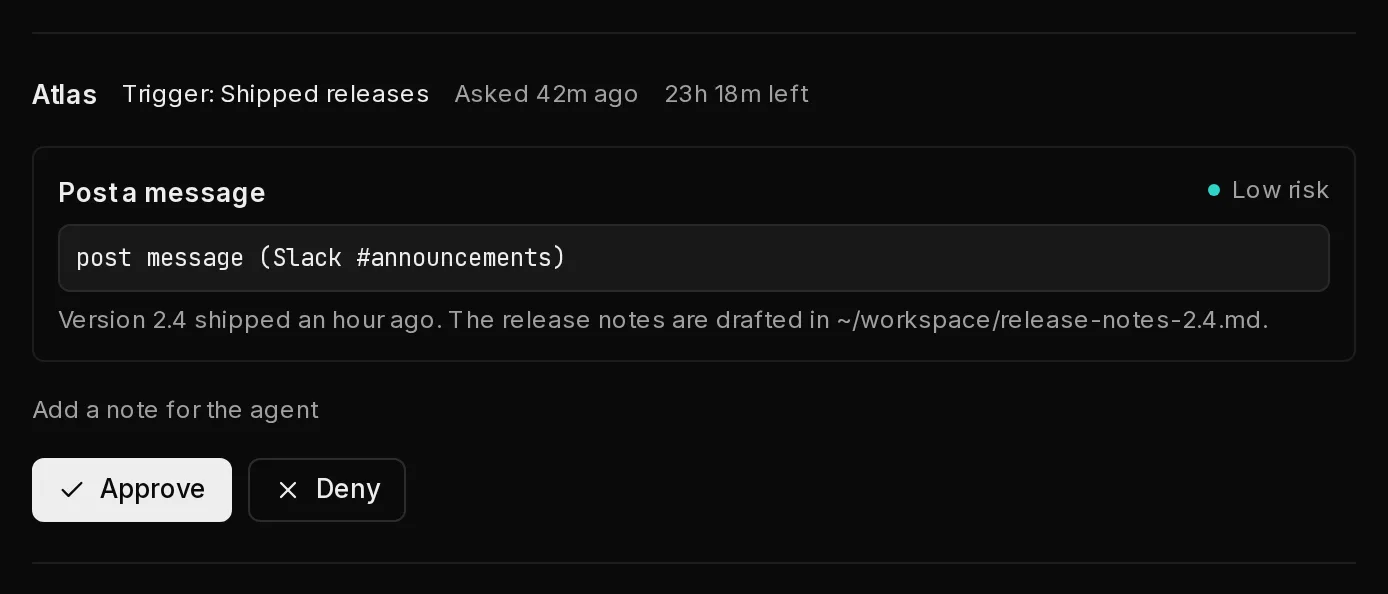
12345Approve or deny a request#
- Read what the agent wants to do.
- Click Approve (3) to let it go ahead, or Deny (4) to stop it.
- To tell the agent why you said no, click Add a note for the agent (5) before you click Deny. The note goes to the agent with the denial, so it can do something else instead.
What happens next depends on where the request came from:
- A trigger, chat or self-repair proposal: the agent picks the conversation back up with your decision, runs what you approved and skips what you denied. If it then needs to do more that changes state, it asks again.
- A platform tool: approving runs the action as you, and your plan is checked at that moment, not when the agent asked. Denying just closes the request.
A banner under the page title confirms the decision, and the request moves to Recently decided.
When an agent proposes several actions at once#
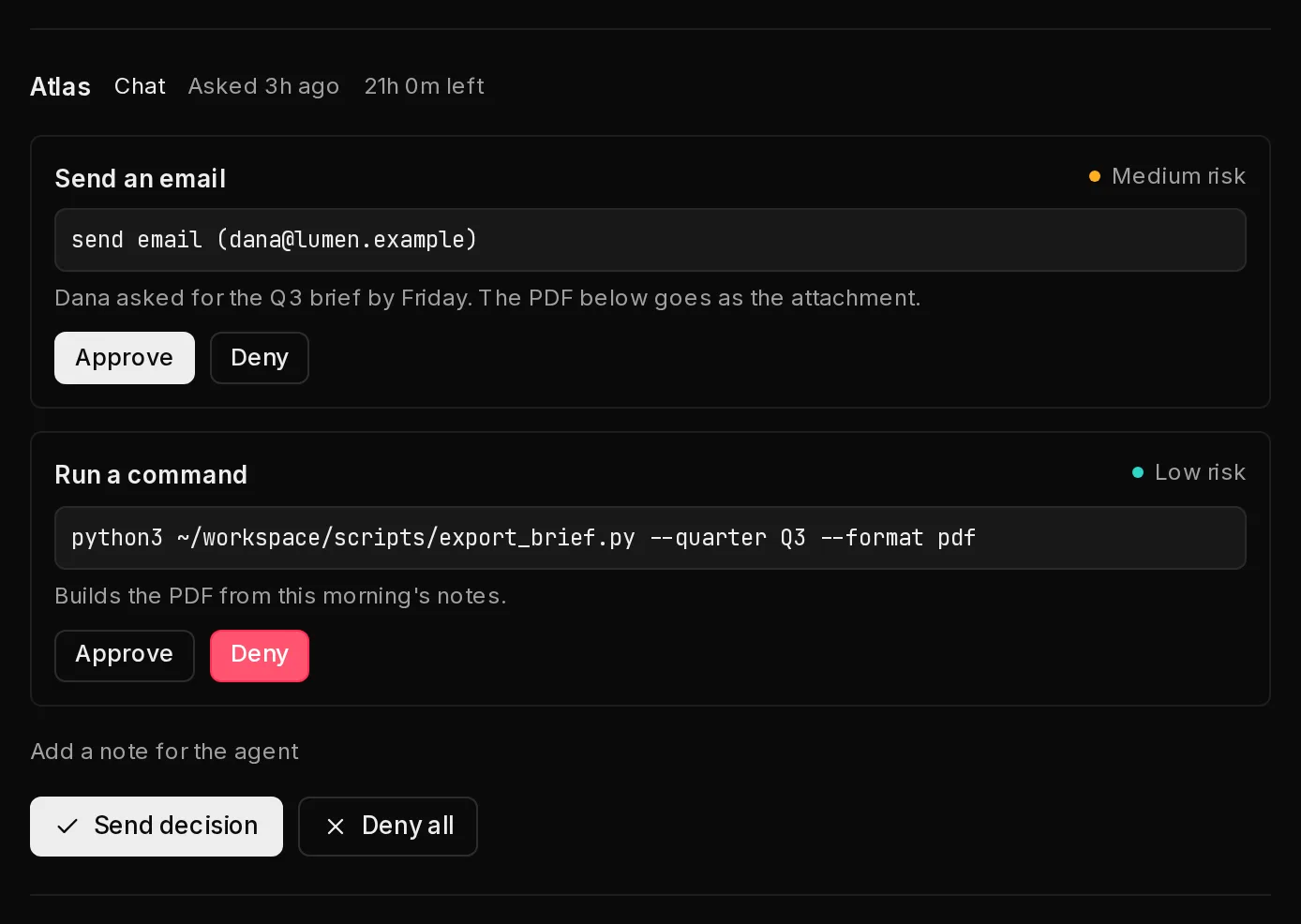
An agent in one turn can propose more than one action, for example an email and the command that builds its attachment. They arrive as one request with an Approve and Deny choice on each action (1). Everything starts approved, so Approve all sends them all. Deny the ones you do not want and the button becomes Send decision (2); Deny all turns the whole request down. The agent then resumes once with every decision.
 12
12Decide from the agent's page#
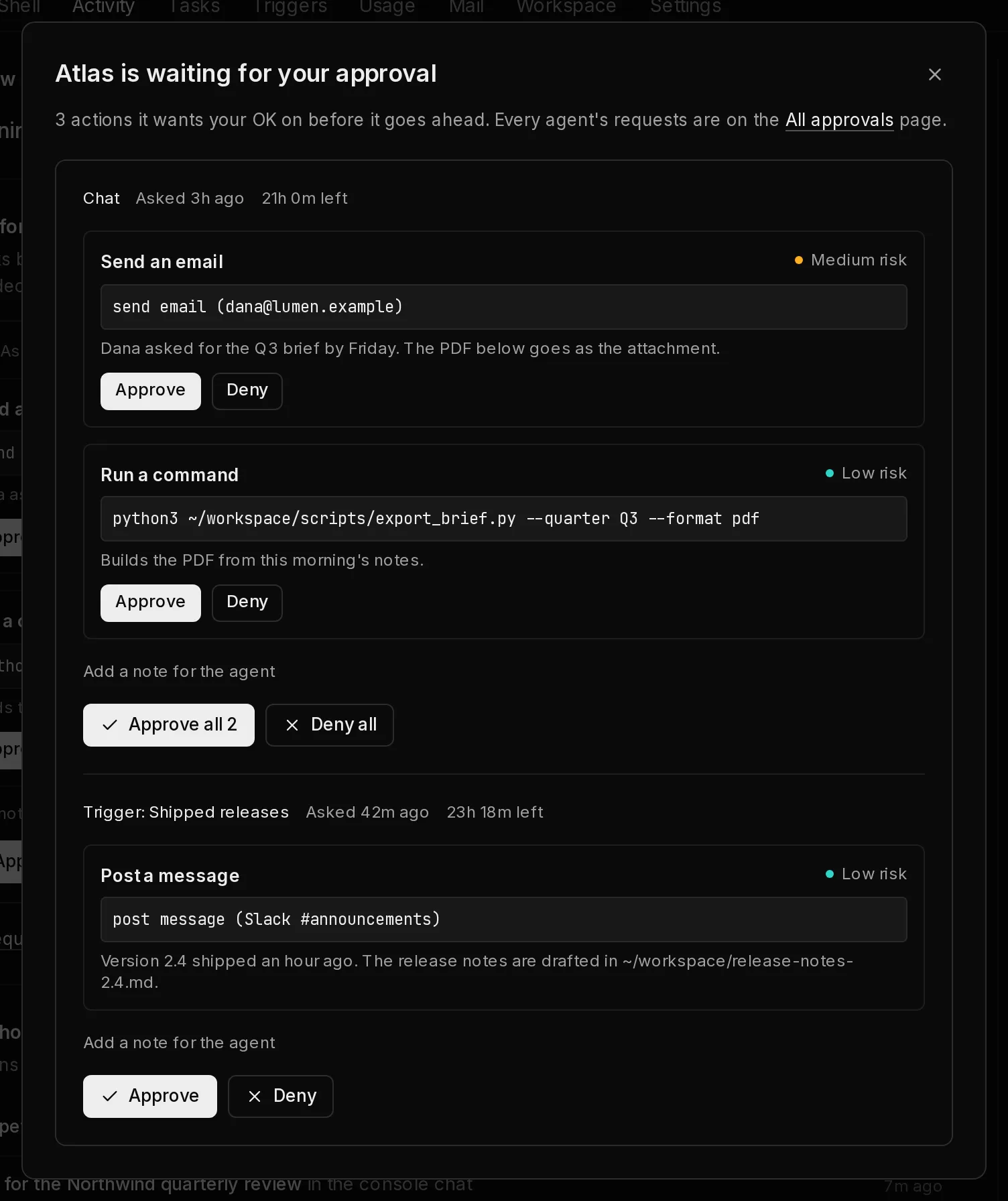
When an agent is waiting on you, a badge next to its status at the top of its page says how many approvals are waiting (1). It shows whichever tab you have open.
 1
1Click the badge to open that agent's requests, with the same buttons as the Approvals page. When you have decided the last one, the badge goes away. All approvals (1) opens the full page.
 1
1Review past decisions#
Recently decided, under the waiting requests, lists what was approved, denied or left to expire, newest first, with the agent, where each came from, when it was settled and any note left with a denial.
Get told when something is waiting#
When a new request arrives, the owner of your Qoren organization gets an email naming the agent and what it wants to do, with a link to the Approvals page. To keep a burst of requests from filling your inbox, Qoren sends at most one of these an hour. Everything that arrives in between is on the page.
Frequently asked questions#
Who can approve a request?
Anyone who belongs to your Qoren organization. If two people decide the same request, the first decision counts and the second changes nothing.
What happens to a request nobody decides?
It expires 24 hours after it was made and can no longer be approved. It shows as Expired under Recently decided. The agent is not told again; if the work still matters, ask it in chat.
Does approving cost anything?
Approving a proposal starts a new turn for the agent, which uses credits like any other turn. Denying does not. An approved platform tool action costs whatever that action costs, for example a larger environment after a resize.
Can an agent approve its own request?
No. Only a person can decide, from the console or the CLI.
Is approval mode a hard block?
No. On every turn it covers, Qoren tells the agent to propose instead of act, and this page only ever shows what it actually proposed. For hard limits, narrow the Qoren tools it may call and give it only the keys it needs. Tools tagged Asks for approval always wait, whether approval mode is on or not.
What if an agent in approval mode runs on its own?
A trigger or a self-repair that proposes something waits here like any other request. Nobody is watching an unattended run, so turn approval mode off for an agent that should act on its own, or keep an eye on this page.
Why did a request disappear before I decided?
Someone else in your organization decided it, or it reached its 24 hours and expired. Either way it is listed under Recently decided.