
Organize agents by client
Run AI agents for several clients from one Qoren account. Add clients, assign environments to them, pick a client for new agents, and archive old ones.
On this page
If you run agents for other businesses, Clients keeps each client's work apart. You add your clients, then assign environments to them. An environment's agents, and what they cost, belong to the environment's client. Your clients never see any of this: it is your own bookkeeping, shared only with your team members.
The Clients page#
In the sidebar, open My Company and click Clients.
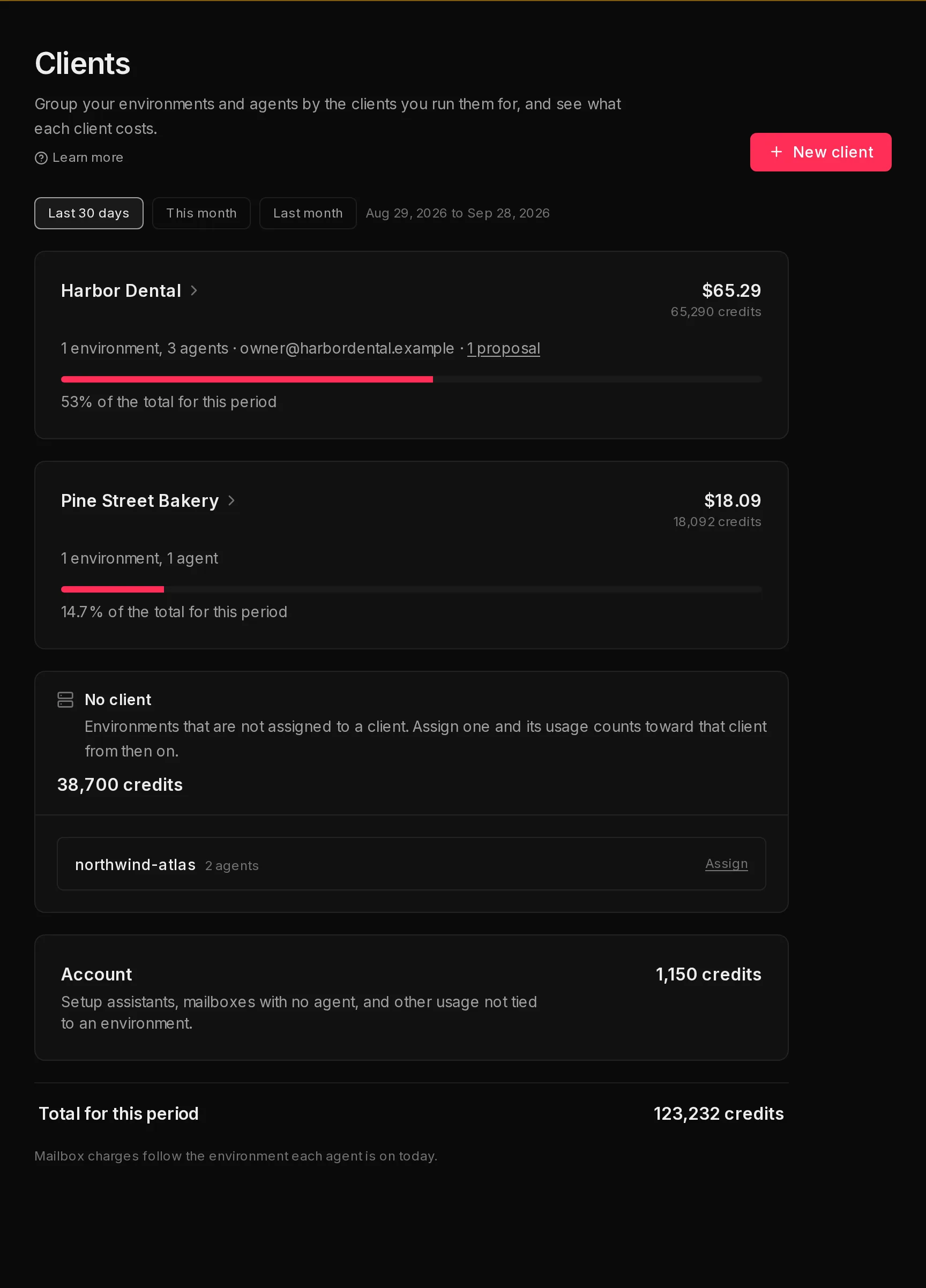 123
123- New client (1) adds a client.
- Each client card shows how many environments and agents it has (2), its contact email, how many proposals you have made for it (a link to them, once there is one), and what it cost in the period you picked.
- No client (3) lists the environments that do not belong to a client yet.
- Account and Total for this period close the page. Cost per client explains the figures.
Add a client#
- Click New client.
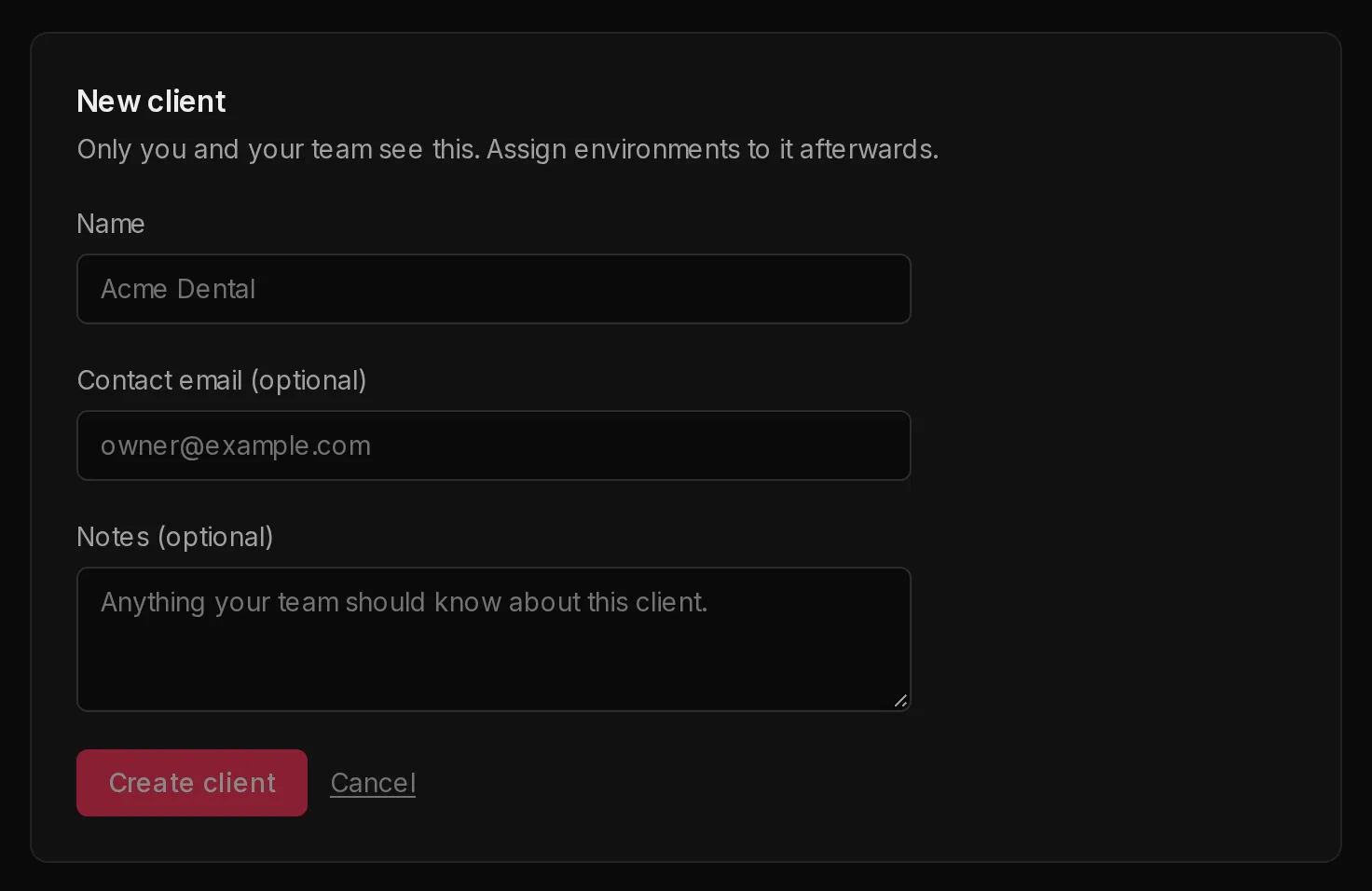
- Type the client's Name (1). Each of your clients needs a different name.
- Optionally add a Contact email (optional) and Notes (optional) for your team.
- Click Create client (2).
 12
12The client appears as a card with no environments. Next, give it an environment.
Assign an environment to a client#
Every environment belongs to one client or to none. Its agents come with it. You can assign one in three places.
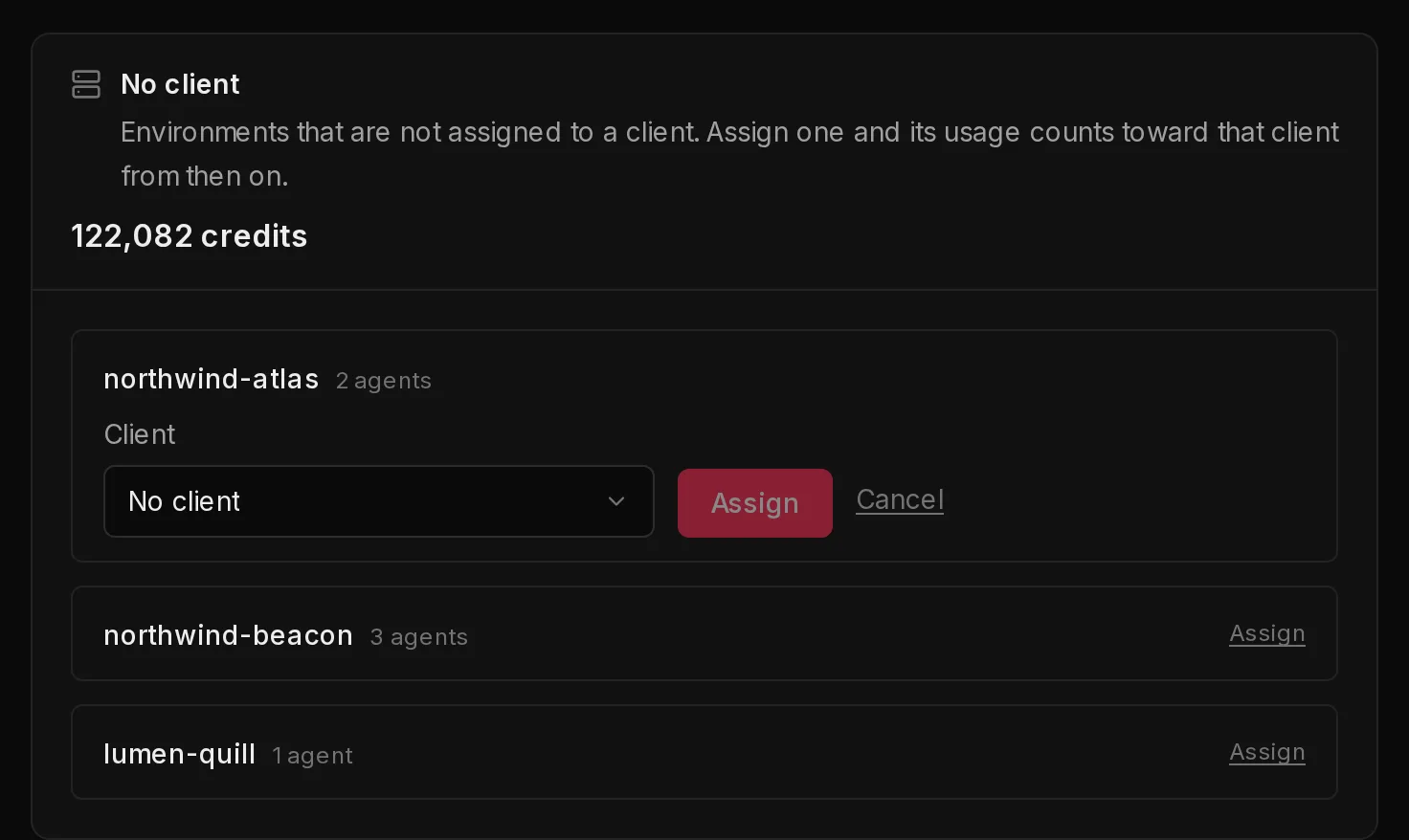
From the Clients page. Under No client, each environment has an Assign link.
- Click Assign next to the environment.
- Choose the client in the Client menu (1).
- Click Assign (2).
 12
12From the environment's settings. Open the environment, click the Settings tab, choose a client in the Client card and click Move. This also moves an environment from one client to another, or back to No client. See environment settings and logs.
When you create the environment. The New environment form has a Client menu once you have a client. On a client's own page, New environment opens the form with that client already chosen. See create an environment.
Usage from the moment you assign counts toward the new client. What the environment used before stays with the client it was recorded under.
Keys its agents already have stay on them when you move an environment. From then on they only get the new client's keys and the ones saved for all clients, and any key that came from the old client is listed in each agent's Keys settings so you can replace or revoke it. See keys for each client.
Pick a client when you create an agent#
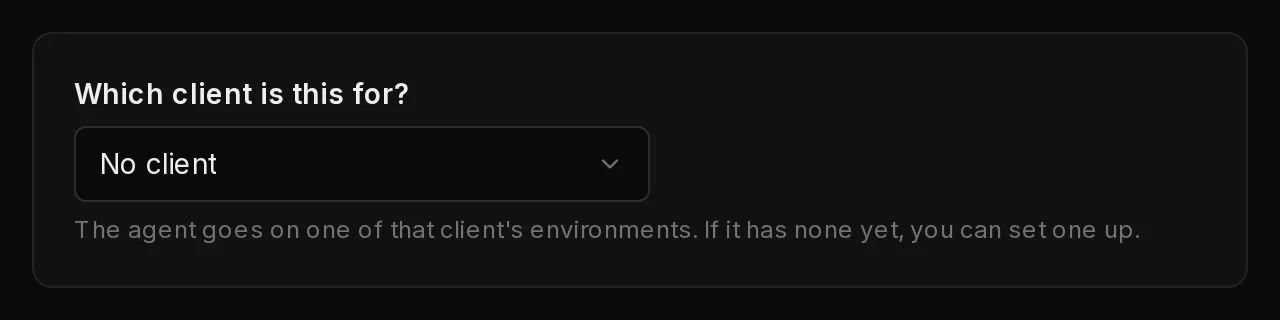
Once you have clients, creating an agent asks Which client is this for?
 1
1The agent goes on one of that client's environments. Leave it on No client to use an environment with no client. If the client has no environment ready, the flow says This client needs an environment first and offers Set up an environment, with the client already chosen.
See your agents by client#
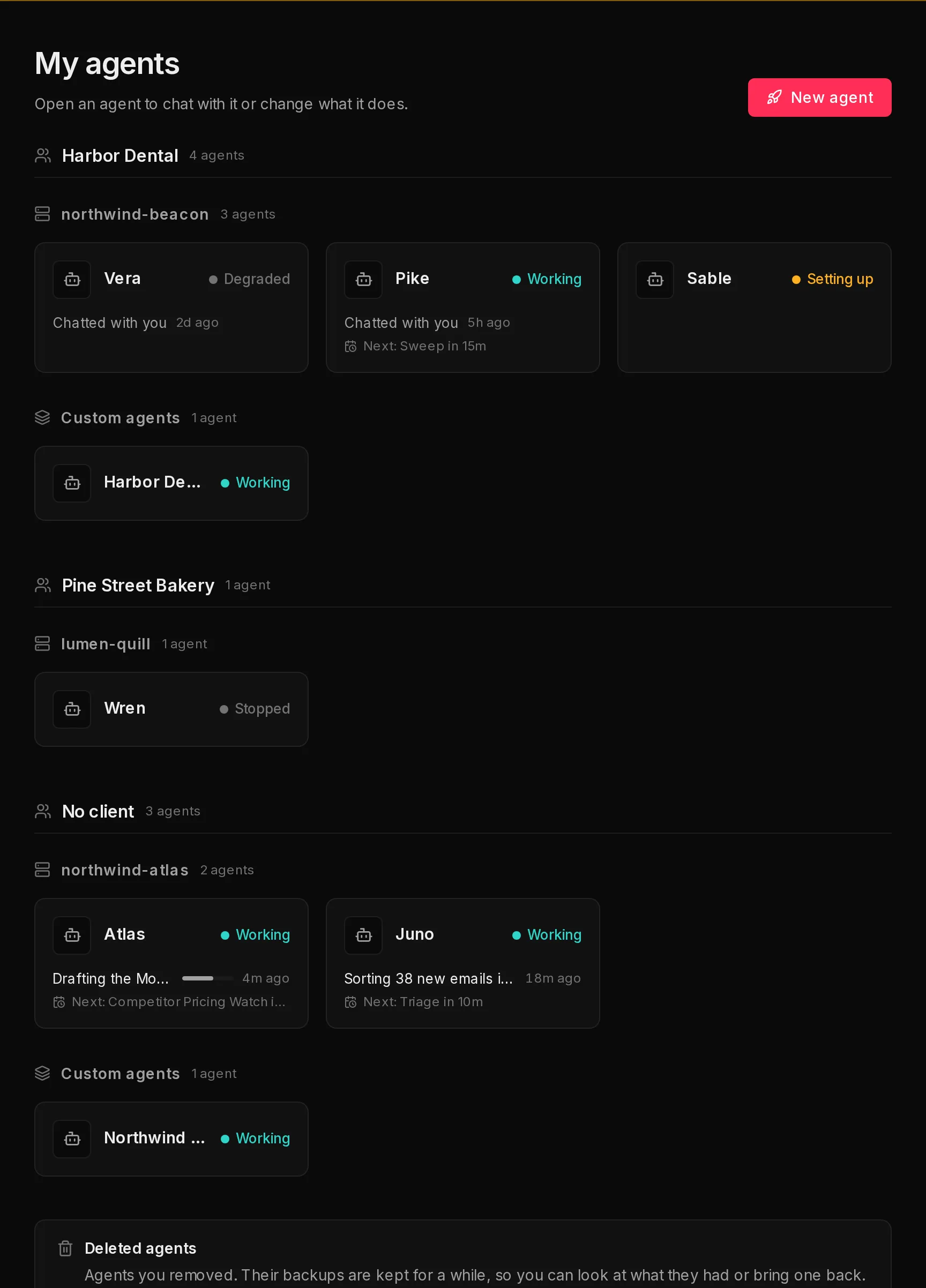
As soon as any environment belongs to a client, the Agents page groups your agents by client, then by environment, with No client last. The Environments page groups your environments the same way, and each client's heading counts its environments, its agents and the keys saved for that client.
A client's page#
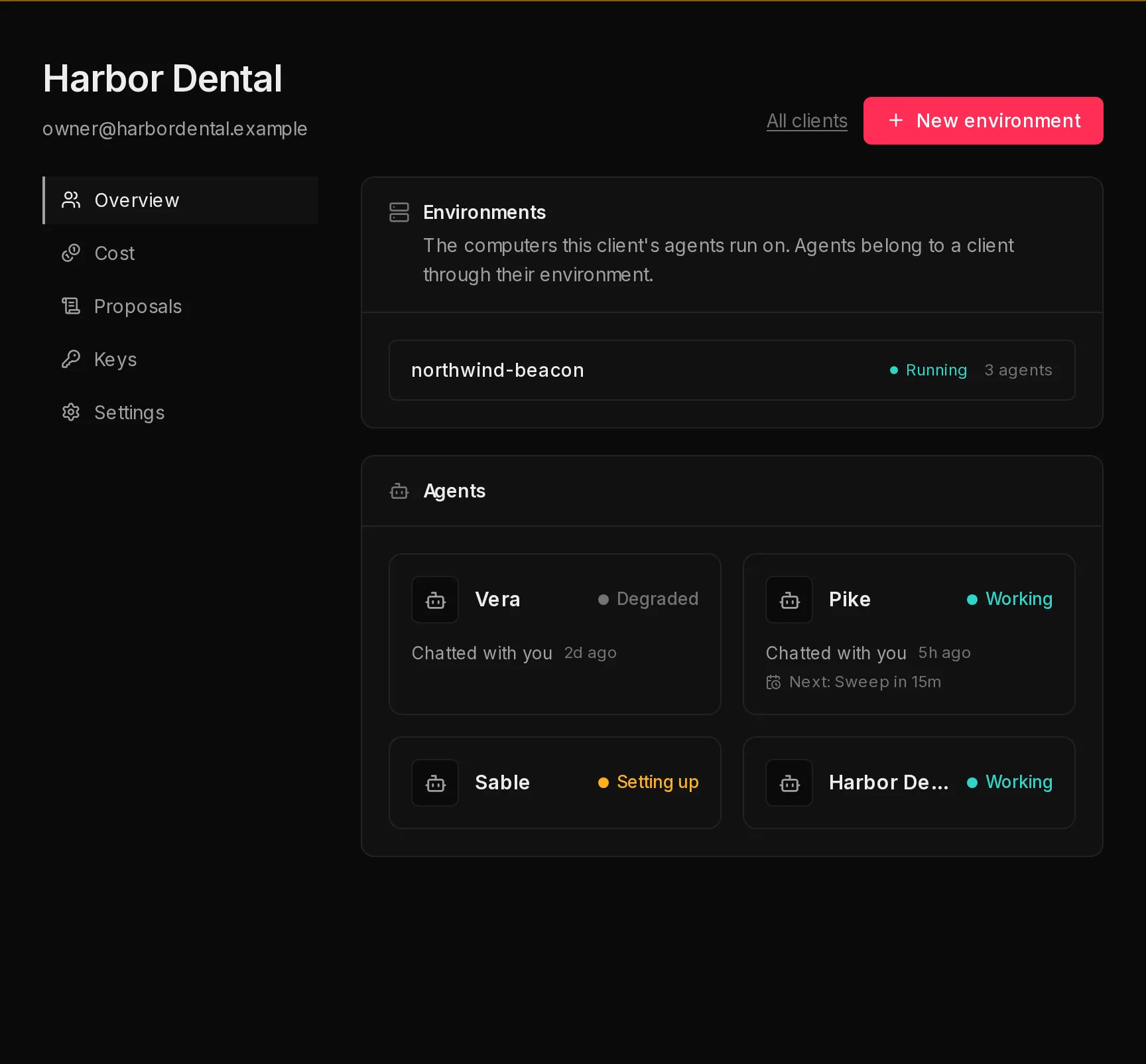
Click a client's name to open its page. The tabs on the left (1) split it into:
 12
12- Overview: each of the client's environments with its status and agent count, then every agent on those environments. With no environment, Move an existing environment here takes you to your environments.
- Cost: what the client's environments and agents used, with a breakdown. See cost per client.
- Proposals: what you have quoted this client, with each proposal's status and monthly price. New proposal starts one already assigned to the client. See write a client proposal.
- Keys: the vault keys saved for this client. Only this client's agents receive them, ahead of any key with the same name saved for all clients. The tab also names the keys the client falls back to from All clients. See keys for each client.
- Settings: the name, contact email and notes (change them and click Save), and Archive, to hide the client when you no longer work for them.
New environment (2) opens the New environment form with this client already chosen.
The address in your browser keeps the tab you are on, so a bookmark or a link you send a teammate opens the same tab.
Archive or restore a client#
Archiving hides a client from the Clients page and from every client menu. Its cost history is kept.
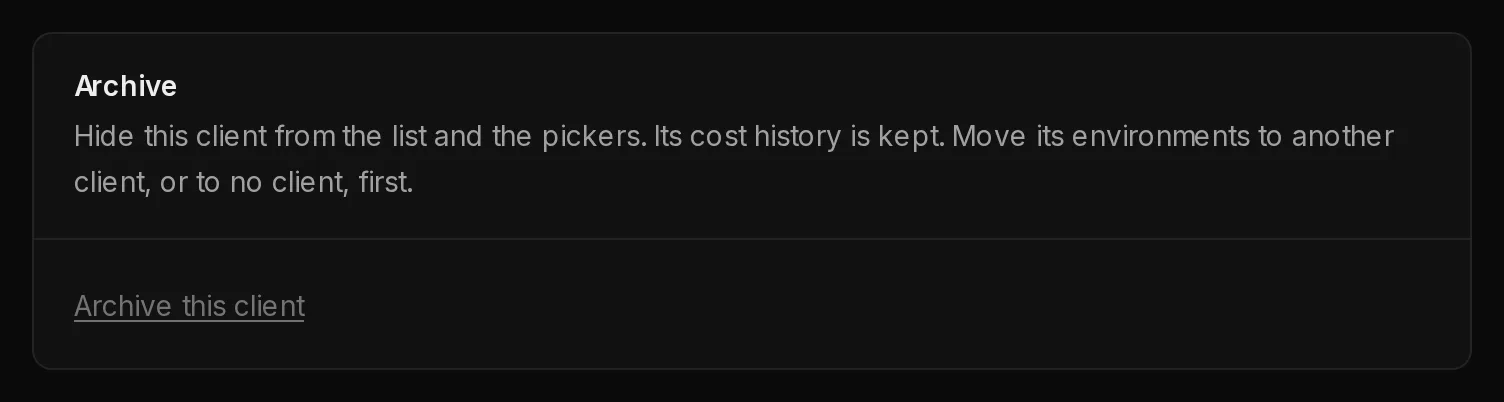
- Move the client's environments to another client or to No client first. Qoren will not archive a client that still has environments.
- On the client's page, click the Settings tab, then Archive this client (1).
 1
1- Click Archive to confirm.
An archived client that had usage in the period you are viewing still appears on the Clients page, marked "Archived, with usage in this period," so your totals add up. To bring a client back, open its page, click the Settings tab and click Restore client. You cannot assign an environment to an archived client until you restore it.
Frequently asked questions#
Can my clients log in and see their agents?
No. Clients are labels for your own team. Only you and the people in your account see them.
Can I quote a client before their agents run?
Yes. Write them a proposal with the agents, your margin and a printable document, and assign it to the client. See write a client proposal.
Can one client's agent get another client's API key?
No. Save each client's keys on its Keys tab and they are only ever given to that client's agents, even when several clients use templates that ask for the same key name. Keys saved for all clients go to any agent that has no key of its own with that name.
Can one environment belong to two clients?
No. An environment belongs to one client or to none, and all its agents belong to that client. Give each client its own environment to keep them apart.
Does moving an environment to another client move its past costs?
No. Cost stays with the client it was recorded under. Only usage from the moment of the move counts toward the new client.
Does deleting a client delete its environments?
Clients are never deleted, only archived, and you can only archive a client once its environments have moved elsewhere. Nothing running is touched.