
The Qoren platform MCP
Every Qoren agent gets a tool server for the platform itself. See the tool groups, what is on by default, which tools ask for approval, and how to switch them.
On this page
- What the platform MCP is
- The tool groups
- Itself
- Teammates
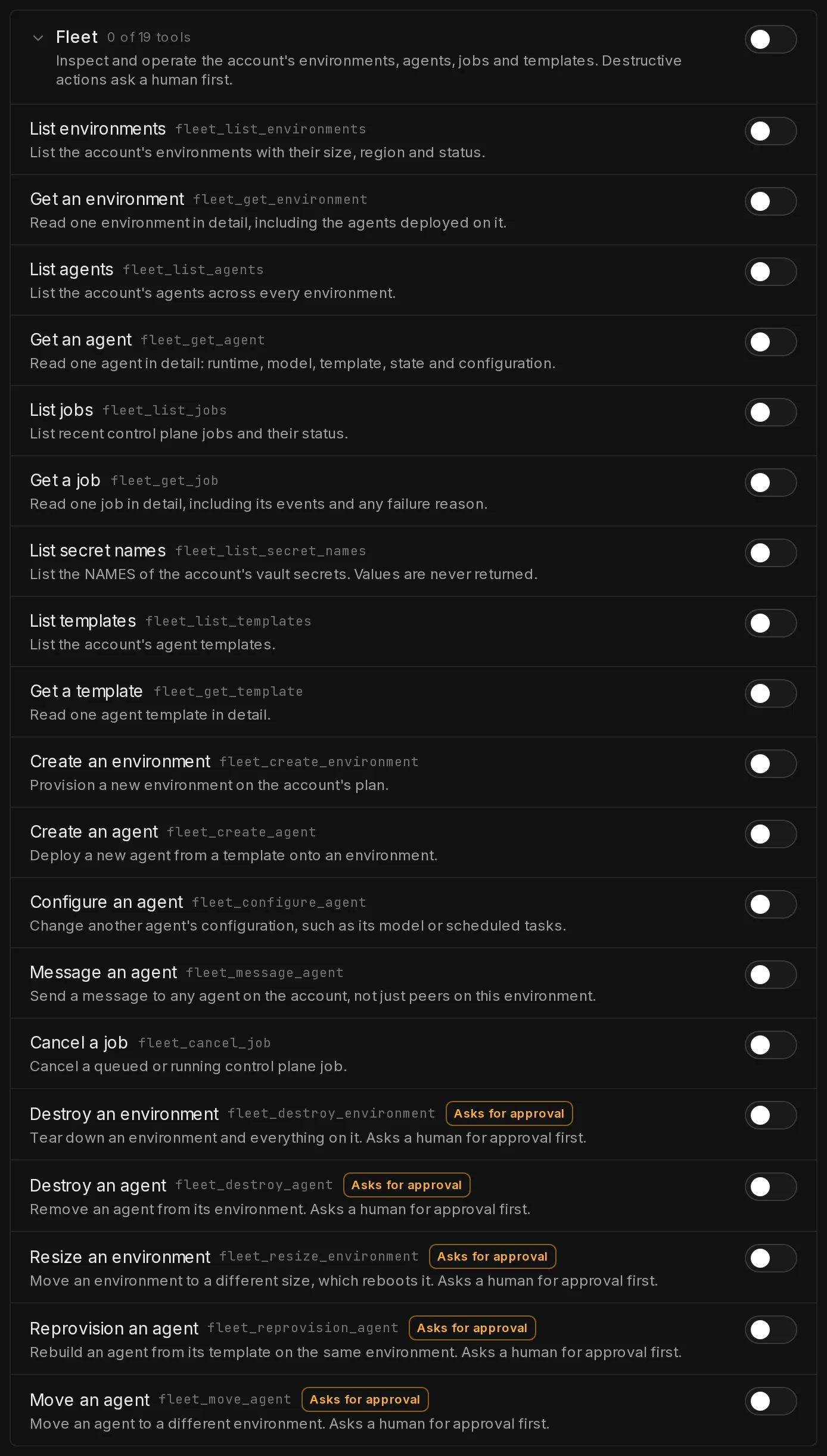
- Fleet
- Account
- Public links
- Proposals
- Set the ceiling on an environment
- Choose the Qoren tools for one agent
- Set the starting tools in a template
- Replace an agent's token
- Approvals, logs and limits
- The platform guides (qoren-* skills)
- Frequently asked questions
Every agent Qoren deploys gets one extra tool server: Qoren itself. Through it an agent can look itself up, message the agents beside it, hand you a file as a link, read your usage, and even operate your environments and agents. Only looking at itself is on until you switch more on, and the environment an agent runs on sets the most it can ever be given.
What the platform MCP is#
MCP (Model Context Protocol) is the standard way AI agents discover and call tools. The platform MCP is an MCP server that Qoren runs for you. It is not something installed on your environment, and it is the same server for every runtime: OpenClaw, Hermes and Codex agents all reach it the same way.
- Each agent has its own credential. Qoren gives every agent a token for this server when it sets the agent up, and writes it into the agent's configuration by reference, so the value does not sit in a config file you might share.
- An agent only sees the tools you allowed. A tool you switched off is not refused, it is not offered at all, so the agent never plans around something it cannot do.
- Changes apply at once. The server checks your settings on every call, so a switch you flip takes effect on the agent's next tool call, and a tool you switch on is offered the next time the agent refreshes its tool list. Nothing needs to restart. The one exception is Mail: switching it reconfigures the agent to attach or detach its mailbox.
- Secret values never come back. Tools that touch configuration or the vault return secret names only.
The tool groups#
Tools come in groups. Switching a group on turns on all its tools; you can then switch single tools off inside it.
| Group | What the agent can do | On by default |
|---|---|---|
| Itself | Read its own identity, environment, configuration, logs and telemetry, post a status line, and read the platform guides for the groups it has | Always on |
| Teammates | Discover the other agents on the same environment and send them messages | Off |
| Adds no tools. Attaches the agent's mailbox so it can read and send email | Off (see below) | |
| Fleet | Inspect and operate your environments, agents, jobs and templates. Destructive actions ask a person first | Off |
| Account | Read usage, spending and plan limits. Never billing details or secret values | Off |
| Public links | Publish a file from its own workspace as an expiring link, instead of pasting the contents | Off |
| Proposals | Read and write your client proposals, with live pricing. Deleting one asks a person first | Off |
Mail only matters for an agent that has its own mailbox; see agent email for how an agent gets one.
A new environment allows only Itself. A new agent starts with what its template allows, or only Itself when the template sets nothing. The Work with teammates switch in an agent's permissions is the same thing as the Teammates group on its environment: see agents working together.
Itself#
| Tool | What it does |
|---|---|
| Who am I | Return this agent's name, runtime, model, template and current state |
| My environment | Return the environment it runs on: size, region, status and the peers on it |
| My configuration | Return its scheduled tasks, MCP servers, chat channels and the names of its secrets. Values are never returned |
| My logs | Read a slice of its recent runtime log |
| My telemetry | Read its recent activity and resource telemetry |
| Report my status | Post a short status line, with optional progress, that the console shows on the agent |
| Read a platform guide | Read the detailed guide for a group it has, or list the guides it may read |
When your account uses Qoren's scheduler for scheduled tasks, Itself also holds five scheduling tools: My scheduled tasks, My scheduled task runs, Schedule a task, Change a scheduled task and Delete a scheduled task. They let the agent manage its own scheduled tasks when you ask it to do something regularly.
Teammates#
| Tool | What it does |
|---|---|
| List teammates | List the other agents on this environment that can be messaged |
| Message a teammate | Send a message to another agent on the same environment |
Fleet#
| Tool | What it does | Asks for approval |
|---|---|---|
| List environments | List your environments with their size, region and status | No |
| Get an environment | Read one environment in detail, including the agents on it | No |
| List agents | List your agents across every environment | No |
| Get an agent | Read one agent in detail: runtime, model, template, state and configuration | No |
| List jobs | List recent jobs and their status | No |
| Get a job | Read one job in detail, including its events and any failure reason | No |
| List secret names | List the names of your vault secrets. Values are never returned | No |
| List templates | List your agent templates | No |
| Get a template | Read one agent template in detail | No |
| Create an environment | Create a new environment on your plan | No |
| Create an agent | Deploy a new agent from a template onto an environment | No |
| Configure an agent | Change another agent's model | No |
| Message an agent | Send a message to another agent on its own environment. Agents on other environments are refused. A Custom agent, which has no environment, may message any agent on your account | No |
| Cancel a job | Cancel a queued or running job | No |
| Destroy an environment | Tear down an environment and everything on it | Yes |
| Destroy an agent | Remove an agent from its environment | Yes |
| Resize an environment | Move an environment to a different size, which restarts it | Yes |
| Reprovision an agent | Rebuild an agent from its template on the same environment | Yes |
| Move an agent | Move an agent to a different environment | Yes |
Anything the agent creates counts against your plan exactly as if you had created it, and uses your credits the same way.
Account#
| Tool | What it does |
|---|---|
| Account usage | Read the account's usage for the current period |
| Account spending | Read the account's recorded spending for the current period |
| Plan entitlements | Read what your plan allows, such as environment and agent limits |
Public links#
| Tool | What it does |
|---|---|
| Share a file publicly | Publish one file from its workspace as an expiring public link |
| List shared files | List the links it has published, with their status and how often they were opened |
| Revoke a shared link | Switch off a link so it stops working immediately |
A link opens a page that shows the file and offers a download, to anyone who has it, until it expires or is revoked. Only files in the agent's workspace/ folder can be shared, up to 4 MB each, for at most 30 days. You can publish and revoke the same links from a terminal with qoren agent share (see the CLI command reference).
Proposals#
| Tool | What it does |
|---|---|
| List proposals | List your proposals with their client, status and monthly price |
| Read a proposal | Read one proposal in full: its agents, pricing settings and document text, with its live quote |
| Price a change | Price a change to a proposal, or a new one, without saving it |
| Create a proposal | Start a draft proposal, optionally for one of your clients |
| Change a proposal | Change a proposal's agents, pricing settings or document text |
| Set a proposal's status | Mark a proposal as draft, sent, accepted or declined |
| Assign a proposal to a client | Assign a proposal to one of your clients, or to none |
| Delete a proposal | Delete a proposal for good. Asks for approval |
The agent works on the same proposals you see on the Proposals page, priced the same way: from the live rate card, at your margin, with model spend ranges quoted as ranges. The prices follow from the agents, their usage and your pricing settings; like you, the agent can also type an agent's monthly price by hand. A proposal an agent creates is a draft on your list like any other; the account log records which agent made each change.
The group only works on an account that has proposals. On an account without it, the tools are not offered even when the group is on.
Set the ceiling on an environment#
The environment decides the most any agent on it may do. An agent's own settings can only narrow that, never widen it.
- In the sidebar, click Environments and open the environment.
- Open the Settings tab. The Platform access card lists every group.
- Switch a group on to allow all its tools, or open it with the arrow and switch single tools off (1).
 12
12Tools tagged Asks for approval (2) never act on their own; see below.
Choose the Qoren tools for one agent#
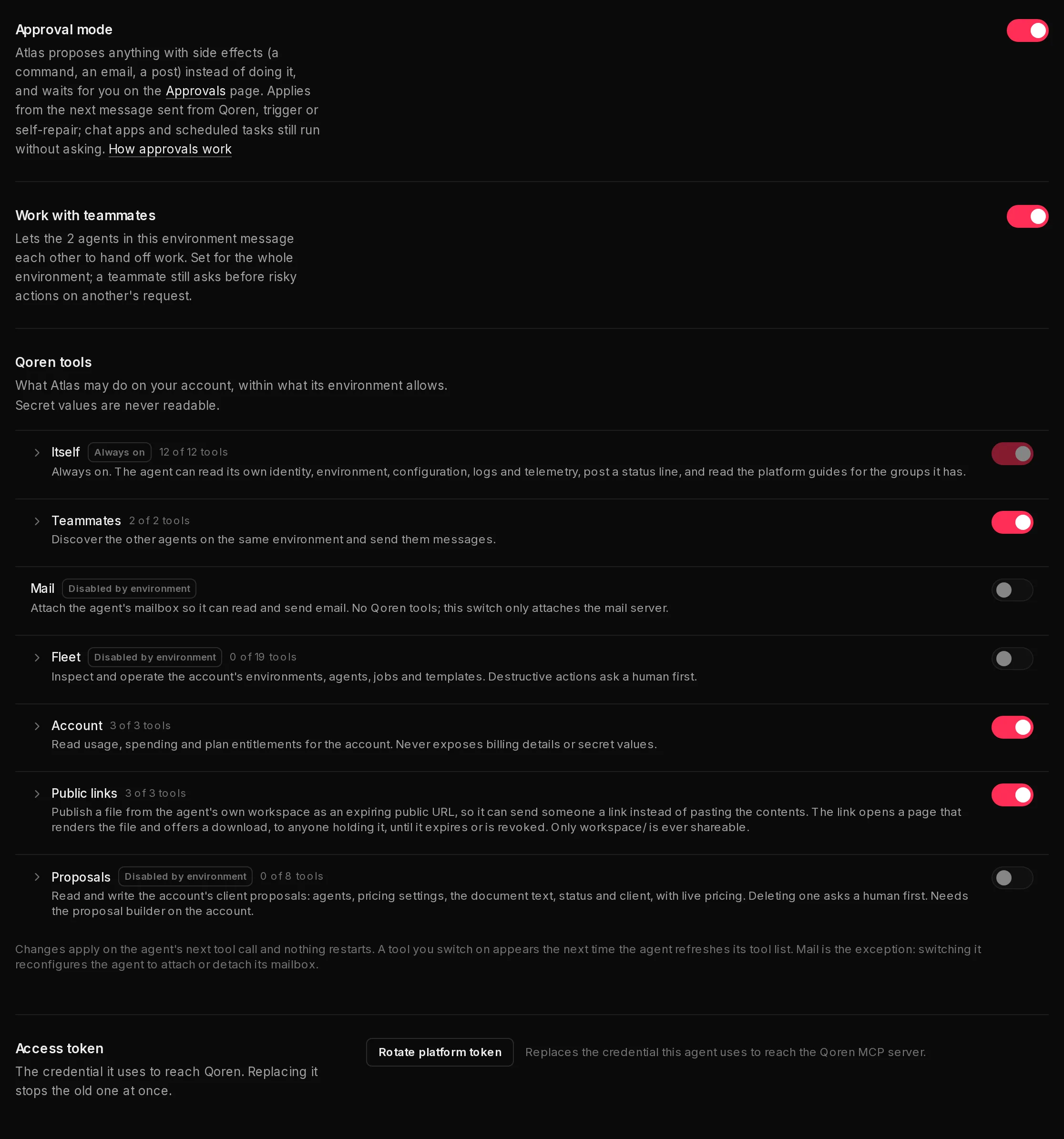
- Open the agent and click Settings, then Permissions.
- Under Qoren tools, Itself is marked Always on (1).
- Switch a group off to take it away from this agent (2), or open the group and switch single tools off.
- A group marked Disabled by environment (3) is closed on the environment, so it cannot be switched on here. Change it on the environment first.
 1234
1234For everything else in this section, see agent permissions.
Set the starting tools in a template#
A template carries a default that new agents start with. In the template editor, open MCP servers and use Qoren platform access. It is a starting point, not a ceiling: the environment still decides the maximum, and you can narrow each agent afterwards. An agent that creates another agent with Create an agent cannot choose its access; the new agent gets the template's default.
Replace an agent's token#
Under Access token, click Rotate platform token (4), then Rotate. The old token stops working at once, and the agent picks up the new one when its configuration is rewritten. Use this if you think the token leaked, or to cut an agent off immediately.
Approvals, logs and limits#
- Destructive tools ask a person. When an agent calls a tool tagged Asks for approval, nothing happens yet: the request goes onto the Approvals page and the agent is told it is waiting. Approving runs the action as you, with your plan checked at that moment; a request nobody decides expires after 24 hours.
- Every change is logged. Each tool call that changes something is recorded in your account log as done by that agent. Reads are not recorded.
- Calls are rate limited. Each agent can make 60 platform calls a minute. Past that, calls are refused until the minute is up.
- A refused call says why. When a call is refused, for the rate limit, a missing permission or a bad argument, the agent gets the reason as the tool's answer, so it can correct itself or tell you.
- Agents cannot change access. No tool reads or changes these settings, so an agent can neither widen its own access nor see what another agent may do.
The platform guides (qoren-* skills)#
The detailed "how to use these tools" guidance is not stuffed into every prompt. It ships as one guide per group, read only when needed: qoren-self, qoren-teammates, qoren-mail, qoren-fleet, qoren-account, qoren-public-links and qoren-proposals.
- On a runtime that reads a skills folder (Hermes today), the guides for the groups the agent has are placed there as skills, and removed again when you switch a group off.
- On every runtime, the agent can read the same guides with the Read a platform guide tool.
An agent only ever sees guides for groups it can use. The qoren- name prefix is reserved, so your own skills cannot use it.
Frequently asked questions#
What can a brand new agent do?
Read itself, and nothing more, unless its template or its environment says otherwise. Teammates, Mail, Fleet, Account and Public links are all off until you switch them on for the environment.
Can an agent give itself more access?
No. No tool reads or changes access settings, so an agent cannot widen or even inspect its own access. Only a person in the console can change it.
Can an agent read my secrets?
No. Tools that touch configuration or the vault return secret names only. No tool returns a secret value, on any plan, at any setting.
What happens when an agent asks to destroy something?
The call is parked as a request on the Approvals page, and the tool tells the agent that nothing has changed yet. If a person approves, the action runs as them. A request nobody decides expires after 24 hours.
How do I cut an agent off right now?
Switch its groups off, which applies on its next call, or click Rotate platform token so the token it holds stops working at once.