
Secrets and the vault
Save API keys, tokens and credential files in Qoren's encrypted vault, choose which agents get each one, and edit, reveal or remove them safely.
On this page
The vault is where you keep the API keys, tokens and passwords your agents need: a CRM key, a Stripe key, a Google service account file. You save a key once, then decide which agents get it. Nothing in the vault reaches an agent until you hand it over.
In the sidebar, click Vault. The page is called Keys & passwords.
How the vault keeps keys safe#
- Encrypted at rest. Every value is encrypted (AES-256-GCM) before it is stored.
- Names in lists, never values. The list shows each key's name and description. A value only appears when you ask to reveal it, and every reveal is logged.
- Handed over on the server. When you give a key to an agent, your browser sends only the key's name. Qoren decrypts the value on its side and writes it into that agent's settings file (its
.env), so the value never travels through your browser. - One agent, one private user. Each agent runs as its own user on its environment, with its own home folder and its own
.env. One agent cannot read another agent's keys. - Backups leave keys out. An agent's backups do not include its
.env. - Client keys stay with their client. If you work for clients, a key saved for one client is only ever given to that client's agents. See keys for each client.
Add a key#
- In the sidebar, click Vault.
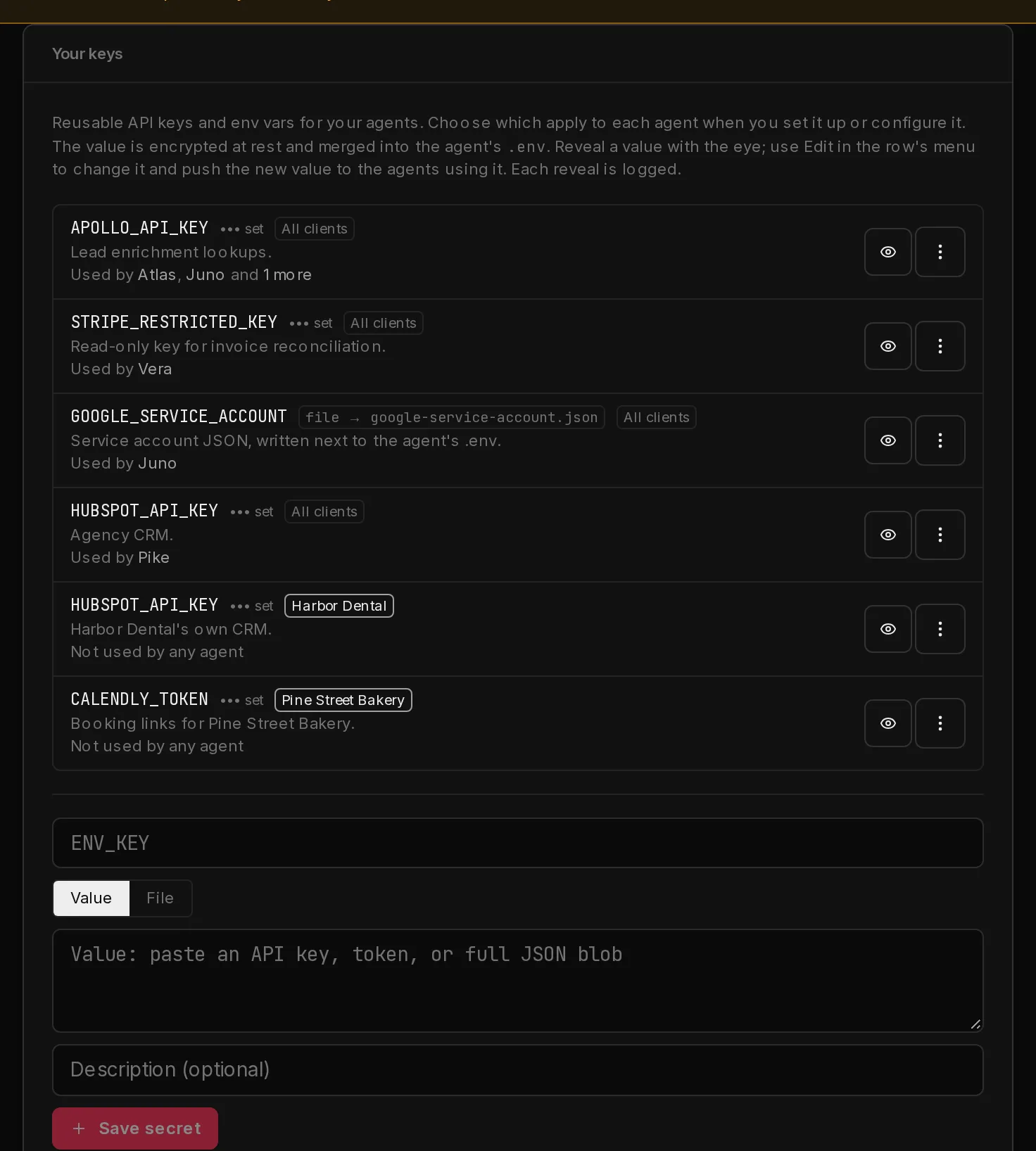
- In the Your keys card, type a name in the ENV_KEY field (4). Use the name the tool expects, for example
APOLLO_API_KEY. Letters are turned into capitals and anything that is not a letter, digit or underscore becomes an underscore. The name must start with a letter. - Leave Value selected and paste the key into the value box.
- Optionally, add a Description so you remember what the key is for.
- If your account has clients, choose under Who can use it whether the key is for All clients or for one client.
- Click Save secret (5).
 12345
12345Saving under a name that already exists for the same client (or for all clients) replaces the stored value.
Save a credential file#
Some tools want a file rather than a value, such as a Google service account JSON or a PEM key.
- Type the name, then switch the toggle from Value to File.
- Pick the file, or paste its contents into the box. Files can be up to 1 MB.
- Click Save secret.
When an agent gets a file key, Qoren writes the file next to the agent's .env and sets the name you chose to the file's path. The form shows the filename the agent will see, built from the key name and the file's extension (for example google_service_account.json).
Keys for each client#
If you run agents for your own clients with Clients, the same key name often means a different account per client: Acme's HUBSPOT_API_KEY is not Bravo's. The vault keeps them apart.
- All clients. A key saved for all clients is the agency-wide default, for example your own OpenRouter or Slack key. Any agent can receive it.
- One client. A key saved for a client is only ever given to agents of that client. You can save the same name once for all clients and once for each client.
Which key an agent gets is decided by the client of the environment it runs on (or, for a Custom agent, the client it is filed under):
- The key saved for that client, if there is one.
- Otherwise, the key saved for all clients.
- Never a key saved for another client. An agent on an environment with no client only gets keys saved for all clients.
Qoren enforces this on its side, whatever your browser or a script sends. Asking for another client's key by name, or mapping it onto a different name, is refused.
To manage one client's keys, open the client and click Keys. It lists the keys saved for that client, new keys you add there are saved for it, and it names the keys the client falls back to from All clients. On the Vault page, each key shows who it is for, and the filter above the list narrows it to the keys for all clients or for one client.
Give a key to an agent#
A saved key does nothing until an agent has it. There are two ways to hand one over.
When you create an agent. If the template asks for a key and your vault already holds one with the same name that this agent's client can use, the form lists it under Injected from vault, with This client or All clients beside it so you can see which one the agent gets. To use a different key, or type a value for this agent only, click Use something else next to it; the key then shows up with the other details the template needs. For any other key the template needs, you can choose Use ... from your vault in the dropdown instead of typing the value. Only keys the agent's client can use are offered. See create an agent.
On an agent that is already running:
- Open the agent and click Settings, then Keys. The section unlocks once the agent has finished setting up.
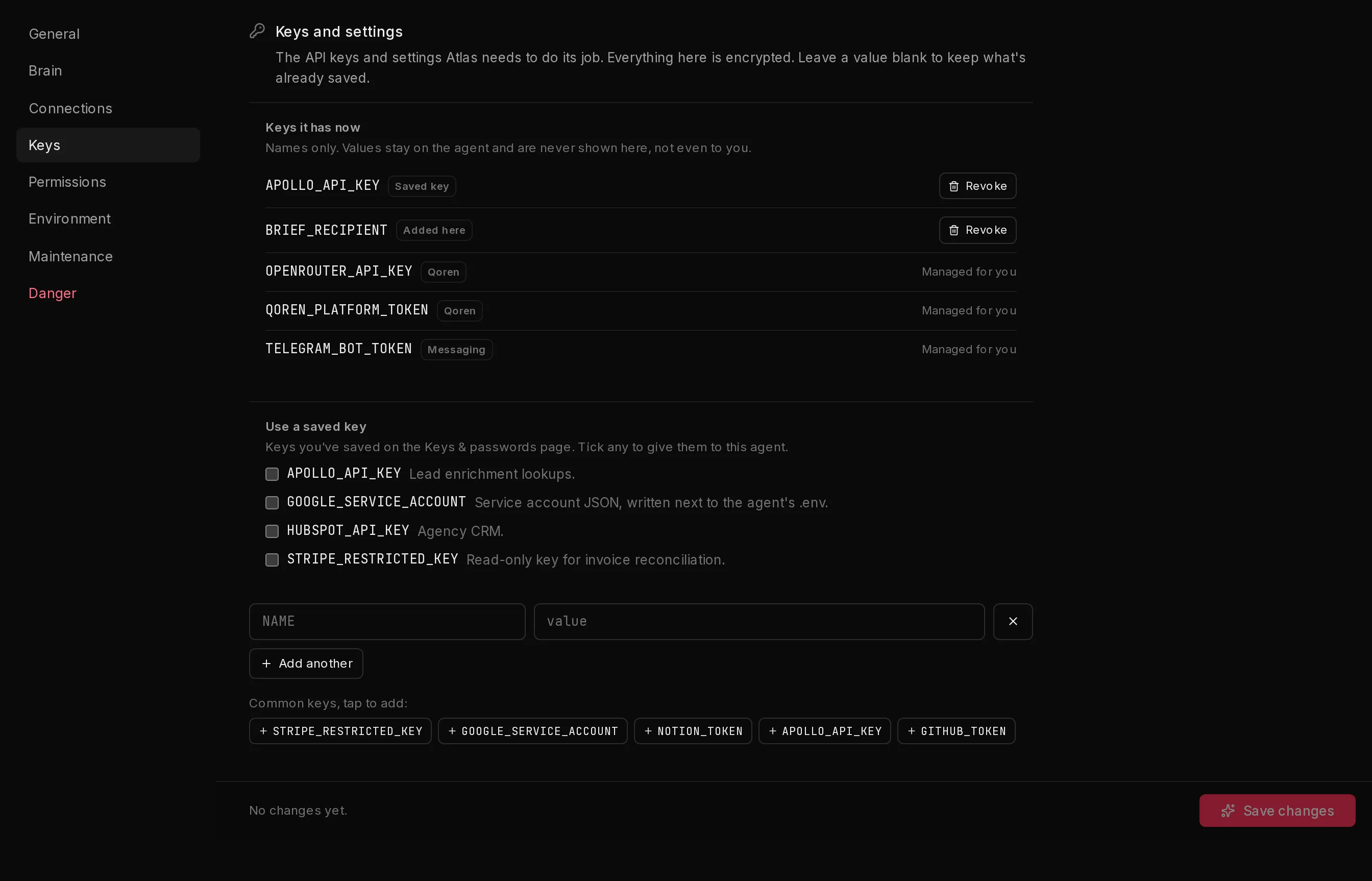
- Under Use a saved key (2), tick the keys this agent should have.
- Click Save changes (4).
 1234
1234Qoren applies the change in the background and the agent uses the new keys from its next run. You can also type a key straight into the NAME and value fields (3). A key added that way goes to this one agent only and is not saved in the vault.
See and revoke what an agent has#
The Keys it has now list (1) is read live from the agent's .env. It shows names only: values stay on the agent and are never shown there, not even to you. Each key carries a label:
- Saved key: copied in from your vault.
- Added here: typed in on this agent.
- Messaging: belongs to one of the agent's chat channels.
- Qoren: set and kept up to date by Qoren, such as the model key.
Keys labelled Saved key or Added here have a Revoke button. Revoking is staged: the key is marked Will be revoked and comes off the agent when you click Save changes. Revoking a saved key removes it from this agent only; your copy in the vault stays. The other keys show Managed for you and cannot be revoked here.
Change a key's value#
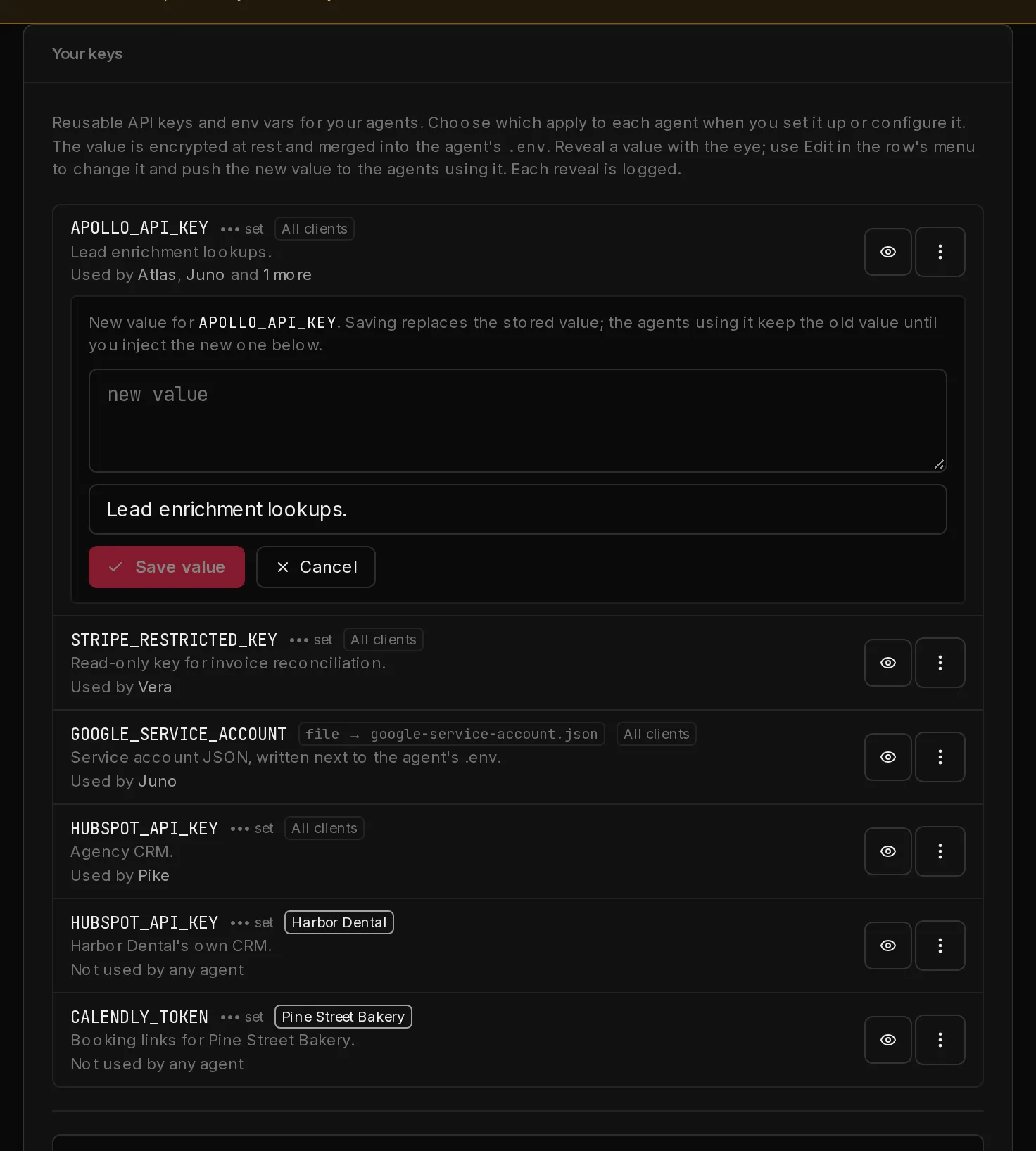
- In the vault, click the three dots next to the key and choose Edit value.
- Paste the new value into the new value box (1). You can update the description at the same time.
- Click Save value (2).
 12
12Saving replaces the stored value, but agents that already have the key keep the old value until you push the new one. If any agents use the key, a panel appears listing them, all ticked. Untick any you want to leave alone and click Inject new value. Each agent is reconfigured and shows injected when it is done. If no agent uses the key yet, you see Saved. No agents are using this secret yet.
To see which agents have a key without changing it, read the Used by line under it, for example Used by Atlas, Juno and 1 more. Click a name to open that agent. For the full list with each agent's environment, choose Agents using it in the key's menu. A key no agent has says Not used by any agent. Agents are recorded when they are set up or reconfigured with the key.
Reveal or remove a key#
- Reveal: click the eye to show the value. Click it again to hide it. Every reveal is logged.
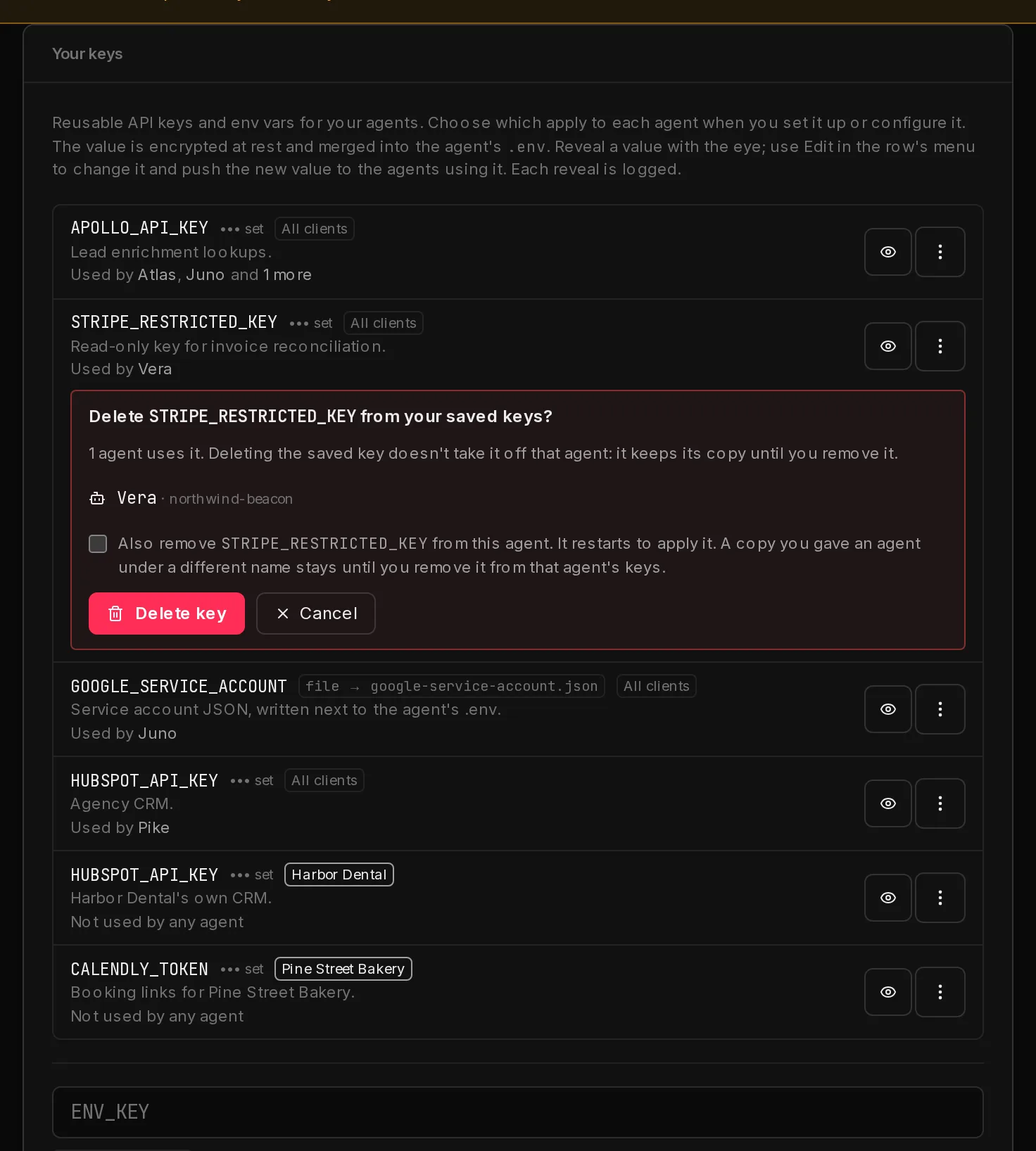
- Remove: click the three dots next to the key and choose Delete. A confirmation opens and lists the agents that use the key (1). Click Delete key (3) to delete it from the vault.
 123
123Deleting a key from the vault stops it being handed to new agents, but agents that already have it keep their copy. To take it off them in the same step, tick the Also remove box (2). The button then reads Delete and remove from the number of agents; click it. Each agent restarts to apply the change and shows removed when it is done. If one cannot be updated, the vault key is still deleted and a note names that agent, so you can revoke the key in its Keys settings.
What agents can and cannot see#
An agent can use the keys in its own .env, because that is how it calls the tools you connected. It cannot see keys you did not give it, and it cannot see other agents' keys.
If an agent, or the environment it runs on, moves to another client, the keys it already has stay in its .env, because a move keeps the agent's settings. Qoren never gives it the old client's keys again, and its Keys settings list the ones that came from the old client. Save those keys for the new client (or for all clients) and apply them, or revoke them.
Agents can also look up some facts about your account through Qoren's own tools (see agent permissions). Those tools never return a secret value: an agent can at most read the names of the keys it was given, and, if you allow it, the names of the keys in your vault.
Good habits#
- Give each tool the narrowest key that works, read-only when the agent only reads.
- Use a separate key per agent where the provider allows it, so one leak does not unlock everything.
- Rotate a key whenever it has been pasted anywhere outside the vault: save the new value, inject it into the agents that use it, then revoke the old key at the provider.
If you connect your own OpenRouter key with bring your own key, it is stored in this vault as OPENROUTER_API_KEY with the description "OpenRouter BYOK key". Manage it from Settings, not from the vault.
Frequently asked questions#
Can I see a key's value after saving it?
Yes, if you need to. Lists show names and descriptions only, but the eye button reveals a stored value. Each reveal is logged.
Does an agent get every key in my vault?
No. An agent only gets the keys you tick for it, plus, when you create it from a template, saved keys whose names match the keys that template asks for. Either way it only gets keys saved for its own client or for all clients.
Can one client's agent get another client's key?
No. A key saved for a client is only given to agents of that client, even when another client's template asks for the same name. Qoren checks this on its side for every deploy, change and restore.
How do I rotate a key?
Open the key's menu (the three dots), choose Edit value, paste the new value and click Save value. Then use Inject new value to push it to the agents that use it, and finally revoke the old key at the provider.
Can one agent read another agent's keys?
No. Each agent runs as its own user with its own .env, readable only by that agent, and only the keys given to that agent are written there. This holds even for agents that share an environment.
What happens to my vault if I delete my account?
Deleting your account erases your vault along with the rest of your data.