
Schedules, triggers, and jobs
How Qoren agents run on their own. Add, change and pause scheduled tasks on the Tasks tab, see what is coming up, and learn what else can wake an agent.
On this page
An always-on agent is mostly a list of scheduled tasks. Each task is a schedule plus a standalone instruction: at the set time the agent wakes up, does the work, delivers the result and goes back to waiting. This page covers scheduled tasks, the other things that can wake an agent, and the jobs that apply your changes.
What a scheduled task is#
A task has three parts:
- A name: short, lowercase, with hyphens, such as
daily-brief. It must be unique on the agent. - A schedule: stored as a five-field cron expression (minute, hour, day of month, month, day of week). In the console you pick it in words, such as every weekday at 09:00, and the form writes the expression. Unless a time zone is set, it is read in UTC.
- A prompt: the instruction the agent gets each time. Write it as a complete, standalone instruction. The agent receives it fresh on every run, with no memory of your intent beyond the prompt and its workspace.
0 9 * * 1-5     every weekday at 09:00
*/30 * * * *    every 30 minutes
0 6 1 * *       the 1st of each month at 06:00
An agent can have up to 24 scheduled tasks, and a task runs at most once every five minutes.
Where tasks come from#
- Templates. A template can ship with tasks, and every agent created from it starts with them. When you build your own template, its Scheduled tasks section lists each task's name, its cron schedule (marked "5-field cron, UTC") and its instruction. See create a template.
- The Tasks tab. Add a task yourself on the agent's page, and change, pause or delete the ones it has. See manage tasks in the console.
- The agent itself. Ask it in chat, for example "remind me every weekday at 8 with the day's bookings", and it sets up the task. Tasks an agent created are marked Set up by and the agent's name.
- The Qoren CLI.
qoren agent taskslists an agent's tasks and their health, andtask-add,task-setandtask-rmcreate, replace and delete them (see below).
Manage tasks in the console#
Every agent has a Tasks tab that lists what it does on its own.
- Open the agent and click Tasks (1) in the tabs under its name. Each task (3) shows its name, how often it runs, its time zone, where its results go, and when it runs next. A task with a problem also shows its state, such as Failing, and a task you paused says Paused.
- Click a task to open it. Its settings are on the left and its Recent runs (6) on the right. Click a run to read what the agent said, what went wrong if anything, how long it took, and where the result was sent.
- Change the name, the schedule, the instruction or where results go, then click Save.
- Pause (4) keeps the task without running it, and Resume turns it back on. Delete (5) asks Delete for good? Click again to remove the task.
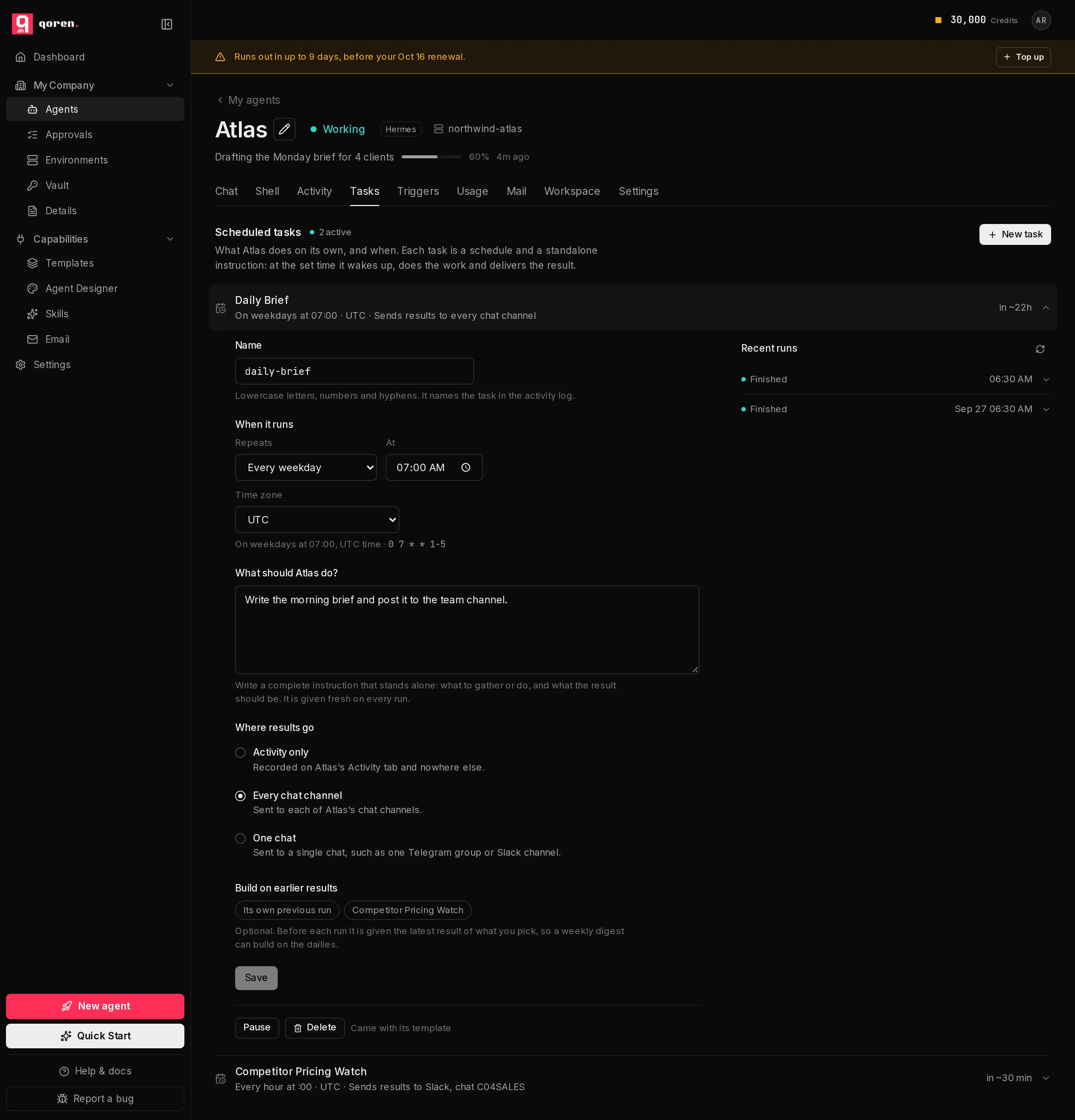 123456
Add a task#
- On the Tasks tab, click New task (2 in the screenshot above).
- In Name (1), type a short name. The form keeps it to lowercase letters, numbers and hyphens.
- Under When it runs, pick how often in Repeats (2): Every day, Every weekday, Every week, Every month, Every hour, Every few minutes or Custom (cron). Set the day and time that go with it, and the Time zone (3), which starts on your browser's. The line underneath says the schedule back in words, next to the cron expression the form wrote for you.
- In What should … do? (4), which names your agent, write the instruction.
- Under Where results go (5), choose where each run's result is sent. See where results go.
- If the agent has other tasks, Build on earlier results lets this one read their latest result before it runs, or Its own previous run, so a weekly digest can build on the dailies. It is optional.
- Click Create task (6). The new task says Being installed until Qoren has put it on the agent.
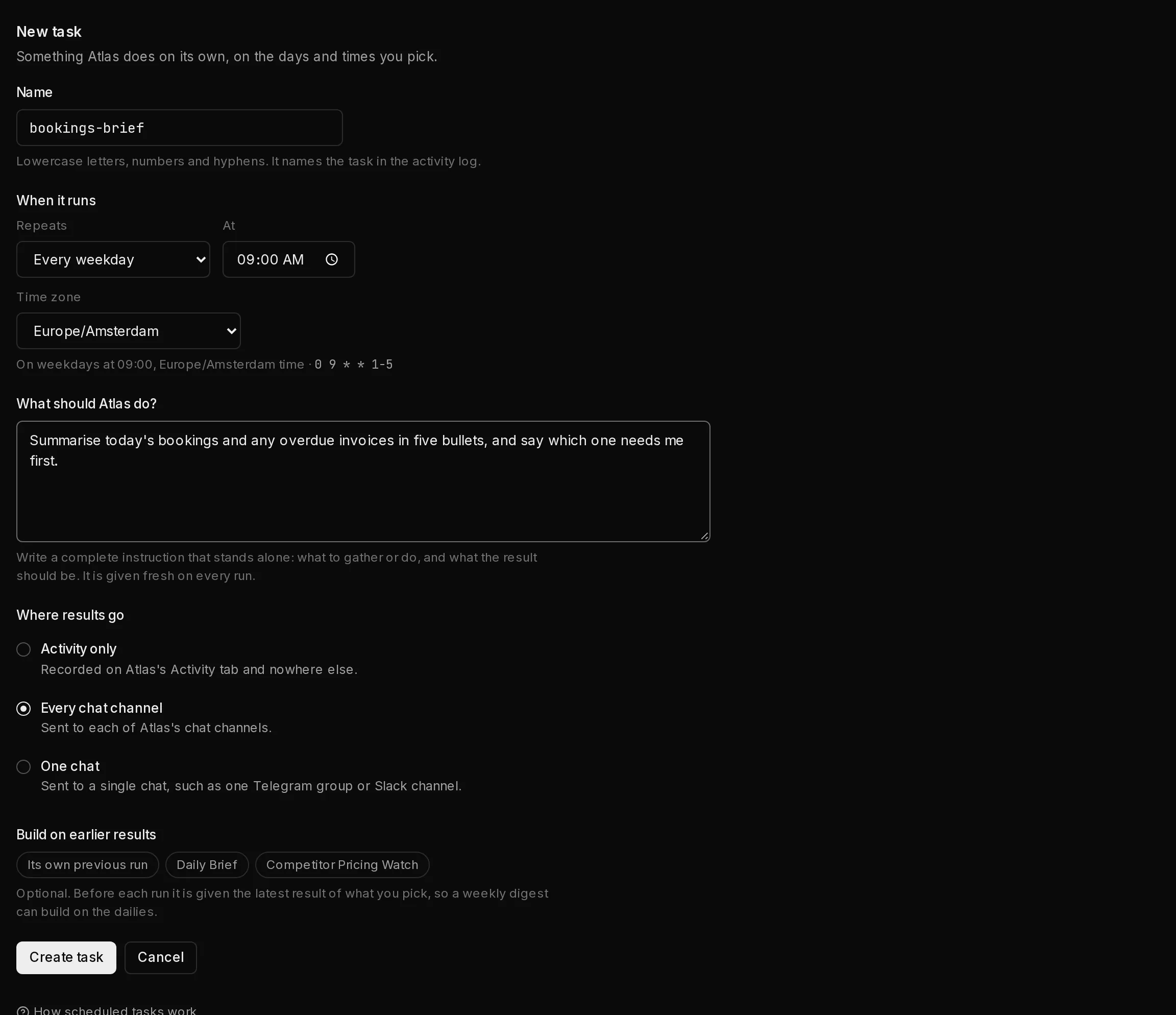 123456
See what is coming up#
- Open the agent and click the Activity tab.
- The Coming up section (1) lists what the agent is scheduled to do on its own, soonest first: each task's name, how often it runs, its time zone, and when it runs next.
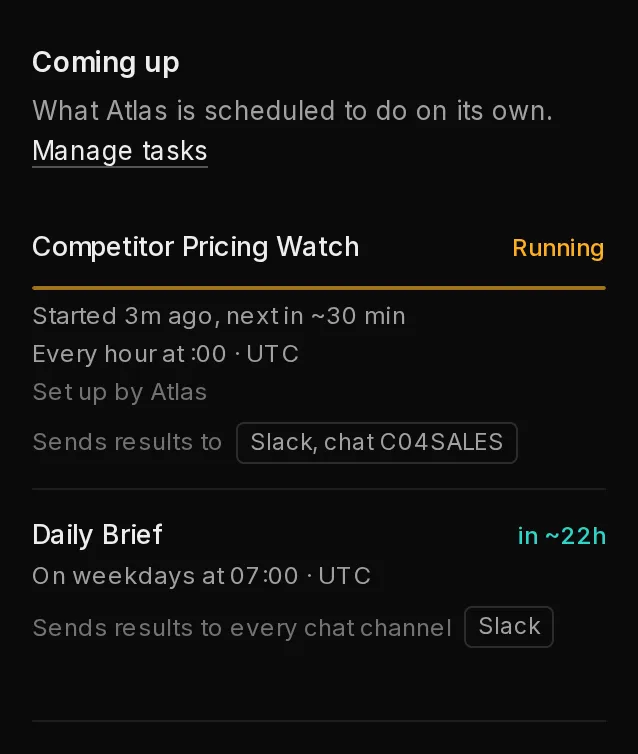 1
1Click Manage tasks to jump to the Tasks tab. Under a task you may also see where its results go ("Sends results to every chat channel", or one named chat), which other tasks' output it reads first, and its health when something is wrong:
| Health | What it means |
|---|---|
| Being installed | Just created or changed; Qoren is putting it on the agent. |
| Missed a run | It did not run when it was due. |
| Failing | Its recent runs ended in an error. |
| Delivery failing | It ran, but the result could not be delivered. |
| Install failing | Qoren could not put it on the agent. |
| No recent report | Qoren has not heard from it for a while. |
| Outcome unclear | It ran, but the result could not be confirmed. |
| Runs in the agent | Scheduled by the agent's own runtime rather than by Qoren. |
A healthy task shows no health line. The Tasks tab shows the same states beside each task. If Coming up says "No Qoren-managed tasks are scheduled", the agent either has no tasks or they run on its runtime's own scheduler.
Below it, Last 24 hours lists what the agent actually did, including each scheduled run, which you can open for its full record. The full log has every line the agent recorded. See agent activity.
Where results go#
Each task delivers its result one of three ways:
- Activity only: recorded on the agent, nowhere else.
- Every chat channel: sent to each of the agent's chat channels. Hermes agents only.
- One chat: sent to a single chat, such as one Telegram group or Slack channel, which must be one of the agent's own channels.
For a Hermes agent with chat channels, a new task delivers to every chat channel unless you choose otherwise. Otherwise it defaults to activity only. The console offers only the choices your agent can use: with no chat channel connected, Activity only is the one choice. For One chat, pick the chat app and, optionally, type the id of one chat or channel; left empty, the result goes to that app's home chat.
Manage tasks from the terminal#
qoren agent tasks agt_abc
qoren agent task-add agt_abc weekday-brief "0 8 * * 1-5" \
  "Summarise today's bookings and overdue invoices in five bullets." \
  --timezone Europe/Lisbon --deliver-to telegram
qoren agent task-runs agt_abc tsk_123
qoren agent task-rm agt_abc tsk_123--timezonetakes an IANA time zone name; the default is UTC.--deliveryisactivity-only,all-channelsorchat;--deliver-tonames the chat: a bare app name such astelegramfor that app's home chat, or one chat astelegram:<chat id>orslack:<channel id>.--context-fromlets a task read the latest output of up to five other tasks, or its own previous run (self), before it starts, so a weekly digest can build on the dailies.task-setreplaces a task;--disablekeeps it without firing it and--enableresumes it.
Creating tasks from the CLI needs Qoren's platform scheduler on your account, as it does in the console. Until then, the CLI answers "Managing scheduled tasks is not available for this account yet." See the CLI reference.
What else wakes an agent#
Schedules are one way in. An agent also works when:
- You chat with it in the console.
- Someone messages it on Telegram, Slack or Discord. See chat channels.
- Another service sends an event, such as a booking, a pull request or a payment. See let an event wake your agent.
- Mail arrives in its own inbox. See give an agent its own email inbox.
Every session is tagged with where it came from, such as the console, a chat app or a schedule, so a scheduled run never looks like a chat you forgot about. What each one cost shows in usage reports.
Jobs: how changes are applied#
Changes to the machinery, such as creating an environment, setting up an agent or saving its chat channels, run as jobs in the background with live progress. That is what you see when a panel says Applying your changes…: you can leave the page and it keeps going. Each trigger delivery also runs as a job, and its id shows in the delivery log.
From the terminal, qoren jobs ls lists recent jobs, qoren jobs get <id> shows one with its steps, qoren jobs watch <id> follows a running one and qoren jobs cancel <id> asks it to stop.
Frequently asked questions#
What time zone do schedules use?
UTC, unless the task names another time zone. Tasks from a template are written in UTC. A task you add on the Tasks tab starts in your browser's time zone, and you can pick any other. Tasks created from the CLI or by the agent can name an IANA time zone such as Europe/Lisbon.
What should a task prompt look like?
A complete instruction that stands alone: what to gather or do, what the result should be, and where it goes. The agent gets the prompt fresh on every run.
How do I change the schedule of an agent that is already running?
Open the agent's Tasks tab, click the task, change when it runs and click Save. You can also ask the agent in chat, or use qoren agent task-set from the CLI. Editing the template later does not change agents already created from it.
Where do I see why a run failed?
Open the agent's Tasks tab and click the task: Recent runs lists each run, and a run opens into what the agent said and what went wrong. The Activity tab has the same runs under Last 24 hours, and The full log has the detail. From the terminal, qoren agent task-runs shows each run's output and error.