
Migrate an existing agent to Qoren
Move a Hermes, OpenClaw or Codex agent from a VPS or laptop to Qoren. One script exports it, then the console or the CLI deploys it with its memory and skills.
On this page
If you already run Hermes, OpenClaw or Codex on a VPS, a Mac Mini or your own laptop, you do not start over. One script packs what the agent has become, its persona, memory, skills, scheduled jobs and MCP servers, into a single archive. Qoren turns that archive into a running agent, with the same files in the same places. You can do the import in the console or with the Qoren CLI.
Before you start#
- A running environment on Qoren to put the agent on. If you have none, create an environment first.
- Shell access to the machine where the agent runs now. The export needs only
sh,tarandgzip.
What moves and what does not#
The export copies the agent's configuration and memory, not the runtime itself. Qoren installs the runtime at the version it supports, then lays your files over it.
- Persona: SOUL.md, IDENTITY.md and AGENTS.md become the agent's Identity and Work files, and are saved into a template you can deploy again.
- Memory and skills: Hermes
memory/andskills/, the OpenClaw workspace with itsmemory/folder andskills/, and Codexmemories/,rules/,skills/andprompts/are copied into the new agent after it is deployed. - MCP servers: read from Hermes
config.yaml,openclaw.jsonor Codexconfig.tomland set up again on the new agent. - Scheduled jobs: Hermes and OpenClaw jobs with a cron schedule become Qoren scheduled tasks. Jobs written as an interval (such as every 5 minutes), switched off, or without a prompt are left out.
- Environment variables: the export always carries their names. Values come along only if you ask for them (see below).
- Not carried: session history (unless you ask), binary files, files over 1 MB at export, files over 256 KB at import, and model provider keys. On Qoren, model calls go through Qoren's own key unless you bring your own key.
| Runtime | Read from | Lands on Qoren as |
|---|---|---|
| Hermes | ~/.hermes: config.yaml, SOUL.md, AGENTS.md, memory/, skills/, cron/jobs.json | Identity and Work files, MCP servers, scheduled tasks; memory/ and skills/ in the agent's Hermes home |
| OpenClaw | ~/.openclaw: openclaw.json, workspace/ (SOUL, IDENTITY, AGENTS, memory/), skills/, cron/jobs.json | Identity and Work files, MCP servers, scheduled tasks; workspace files in the agent's workspace; skills/ in its OpenClaw home |
| Codex | ~/.codex: config.toml, AGENTS.md, memories/, rules/, skills/, prompts/; auth.json with --with-secrets | AGENTS.md as the Identity file, MCP servers; the folders and auth.json in the agent's Codex home |
Step 1: export on the old machine#
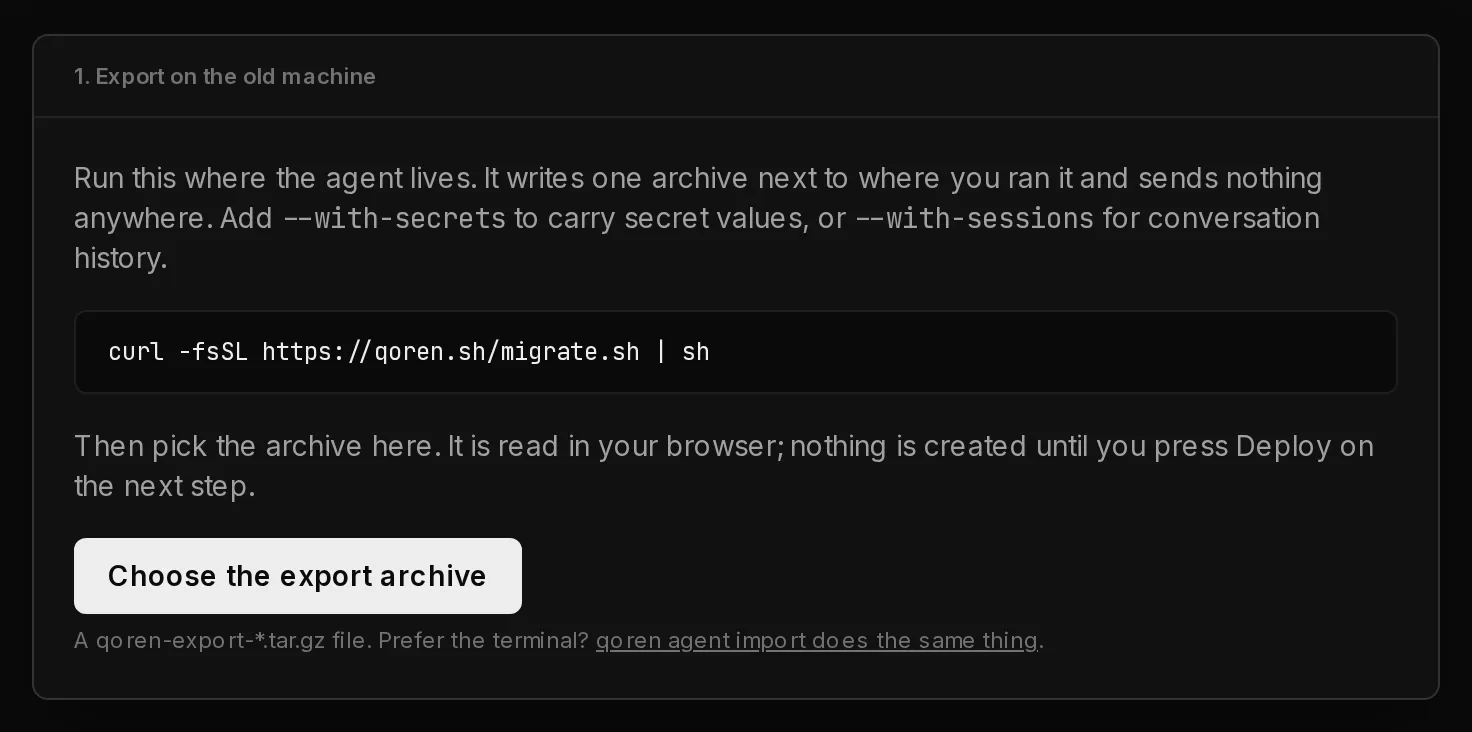
Run the script where the agent lives. It finds the runtime under your home directory (or HERMES_HOME, OPENCLAW_HOME, CODEX_HOME), removes anything that looks like a key from the config files, and writes one archive in the current folder. It sends nothing anywhere.
curl -fsSL https://qoren.sh/migrate.sh | sh

# pick a runtime when more than one is installed, and carry secret values
curl -fsSL https://qoren.sh/migrate.sh | sh -s -- --runtime openclaw --with-secrets| Option | What it does |
|---|---|
--runtime hermes, openclaw or codex | Which runtime to export, when more than one is installed. |
--home <path> | The runtime's folder, if it is not in the usual place. |
--out <file> | Where to write the archive. The default is ./qoren-export-<runtime>-<time>.tar.gz. |
--with-secrets | Include secret values: the .env, auth files and keys inside config files. |
--with-sessions | Include session history and transcripts. |
--max-file-kb <n> | Skip files larger than this. The default is 1024 (1 MB). |
The script prints the model it found, the environment variable names, and how many files it skipped as binary or too large. The whole archive must stay under 64 MB; if it would not, lower --max-file-kb.
Copy the archive to the computer you will import from, with scp or any file transfer.
Step 2: import in the console#
- Open the Import an agent page at
qoren.sh/agents/import. If you have no agents yet, the Import it link on My agents takes you there too. The page repeats the export command (1) for reference.
 12
12- Click Choose the export archive (2) and pick the
.tar.gzfile. It is read in your browser; nothing is created yet. - Review What was found: the runtime, the model the agent was running, the persona, operating manual, MCP servers, scheduled tasks, workspace files, memory and skills, and the environment variable names. Notes in yellow list anything that was skipped or needs your attention. Open Persona preview to read the identity that will be used.
- Under Deploy it, set the Name, pick the Environment, and check the Model. The model the export used is picked for you if Qoren offers it; if not, the field says so and you pick the closest.
- Change Save as template if you want the template to have a different name from the agent.
- If the archive carries secret values, leave Store *names* in the vault and attach them to the agent ticked to put them in your Vault. Values are encrypted and never shown again.
- Click Deploy.
The page then shows Deploying *name* with the setup steps, followed by Copying memory and skills. When it says Imported, the agent is running, and the page lists the template it saved, the secrets it stored, how many memory and skill files it copied, and any keys you still need to add.
Or import with the CLI#
The CLI does the same thing from a terminal, which is handy for scripting or for a dry run first. It needs a plan that includes API access (Ultimate, Business or Enterprise); on Starter or Pro, import in the console as above. Sign in, find the environment's ID, preview, then import:
qoren login
qoren env ls

qoren agent import ./qoren-export-hermes-20260904-101500.tar.gz --dry-run
qoren agent import ./qoren-export-hermes-20260904-101500.tar.gz \
--env env_abc123 --name "Ada" --import-secrets| Option | What it does |
|---|---|
--env <id> | The environment to deploy onto. Required unless you use --dry-run. |
--name <name> | The agent's name. Defaults to the archive's file name. |
--slug <slug> | Its short identifier. Defaults to one made from the name. |
--model <model> | The model to use. Defaults to the one the export used, then your account default. |
--template <name> | The name for the saved template. Defaults to the agent's name. |
--import-secrets | Store the secret values from a --with-secrets export in the Vault and attach them. |
--dry-run | Show what would be created, without calling Qoren. |
--no-wait | Print the job ID and exit instead of following the deploy. Memory and skill files are then not copied. |
After the import#
Open the new agent and check three things before you switch the old install off:
- Identity and instructions. Under Settings, Brain, check the Identity and Work files. If the export had no SOUL.md or IDENTITY.md, a placeholder was written for you to replace. See identity and instructions.
- Keys. Keys whose values were not in the archive are listed by the import. Add them to the Vault and attach them under Settings, Keys.
- Chat channels. A Telegram, Discord or Slack token is exported by name only. Connect the channel under Settings, Connections; see chat channels.
A Codex agent exported with --with-secrets brings its auth.json, so it runs on your ChatGPT sign-in. See Codex ChatGPT sign-in.
Frequently asked questions#
Do I need the CLI?
No. The Import an agent page reads the archive in your browser and runs the same steps. The CLI is there for scripting and for a dry run.
Does the script send anything anywhere?
No. It reads the runtime's folder and writes one archive next to where you ran it. Nothing leaves the machine until you move the file yourself.
Will my API keys end up in the archive?
Not unless you ask. By default the .env is reduced to variable names, and values that look like keys inside config files are replaced with a placeholder. --with-secrets keeps everything, so guard that file.
Can I keep the old install running?
Yes. The export only reads. Run both until you are happy, then stop the old one so two copies of the agent do not answer the same messages or run the same jobs.
What if my model is not offered on Qoren?
In the console, the Model field tells you and you pick another. With the CLI, pass --model with a model Qoren offers.
Why did some scheduled jobs not come across?
Qoren scheduled tasks use a cron schedule. Jobs written as an interval or a one-off time, switched-off jobs, and jobs without a prompt are left out. Recreate them as scheduled tasks.